Welcome
Welcome to the AzurPoly documentation and troubleshooting portal. This site centralizes the manuals and technical guides and is designed to be a single, up‑to‑date reference for all our aircraft.
You can download each aircraft documentation in PDF format to use it offline (find the link on each aircraft main page).
AzurPoly Hub
To easily install the free modules and dependencies for our aircraft, download AzurPoly Hub. This lightweight application is quick to install and provides centralized access to weapon patches and useful utilities.
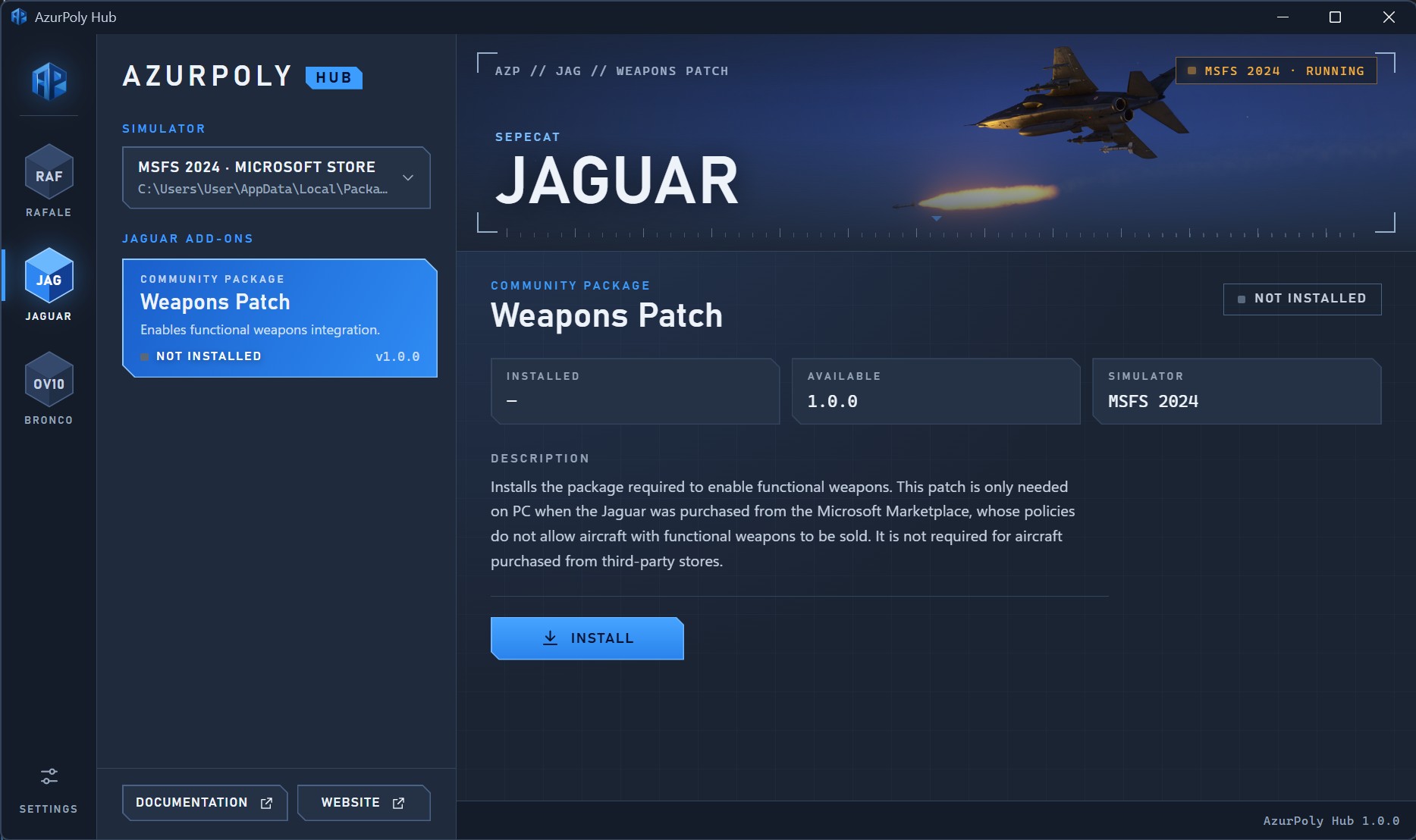
Support
If you experience an issue with one of our products, please consult this documentation first. The manuals describe all supported and unsupported aircraft features. What appears to be an issue may be expected behavior explained in the documentation. Please also ensure that you have installed the latest available version of the affected product.
If you have questions about a product, first check whether the FAQ can help.
If you still need help, you can contact us via email. You can also reach us on our Discord server.
For support, please contact us directly rather than posting complaints on public forums or store pages, as we cannot reliably monitor every discussion about our products.
Documentation published on this website is exclusively provided for usage with AzurPoly products in Microsoft Flight Simulator. They are not official aeronautical publications and must not be used for real‑world operations, training, or decision‑making. Any resemblance to real procedures is for simulation and entertainment purposes only. AzurPoly disclaims all liability for any use of this documentation outside of the intended simulation context.
Known issues
Those issues are already acknowledged and will be fixed in future updates.
Last updated: 2026-10-22
- Rafale
- Jaguar
- C-160 Transall
- OV-10 Bronco
- TB-30 Epsilon
- Fouga Magister
- BD-5
- Very little traffic visible on center display map.
→ This is a simulator issue introduced by Sim Update 6, a ticket has been opened to Asobo. - EFB settings are not saved correctly between flights.
→ This is a simulator issue, and a support ticket has been opened with Asobo. - Right engine fire aural warning does not work.
→ This will be fixed in the next update. - Autopilot approach (ILS) mode is unstable.
→ The system will be improved in future updates. - Minor sound issues, including repeating loops during formation flight and crackling in external views.
→ MSFS 2024 limits the number of audio channels and sound issues can happen when flying with several other aircraft. - Aircraft parts disappear at a distance.
→ With the modular 3D system introduced in MSFS 2024, LOD transitions are significantly more aggressive. As a result, it has become increasingly difficult for developers to keep modular objects visible at long distances.
→ We are discussing the issue with Asobo and hope that future simulator updates will provide developers with greater control over modular-object visibility.
- Fuel pressure alarm falsely triggered during certain transfer phases.
- Click on cockpit pre-flight ribbon does not work in some cases.
- Fuel disappearing after fuel transfer with A tank valve opened.
- Cold and dark button on EFB does not shut down engines.
- Exterior and interior lighting broken in MSFS 2024 with MSFS 2020 version.
- Propeller thrust is not realistic in some conditions (hard to taxi, inconsistent landing distance).
- Lighting issues in MSFS 2024 with MSFS 2020 version.
N/A
N/A
N/A
MSFS 2024 retro-compatibility
MSFS 2020 add-ons are supposed to be fully compatible with Flight Simulator 2024. If you find any issue specific to MSFS 2024, please contact us.
Products
You can buy our products from the in-game Marketplace or from third-party stores, including:
Installation
If you encounter any issue related to the installation of our add-on from a third-party store, please contact the store's support directly. In most cases, we cannot help as the installation process is handled by the store's installer and not by us. We will of course do our best to help you, but we cannot guarantee a solution.
- Microsoft Marketplace
- Third-party stores
After purchasing the product, click on Install.
Download and installation will be managed automatically in background.
Follow the instructions provided by the installer of the relevant store.
For JustFlight only, you will download a zip file containing the product. Unzip it in your Community folder.
Update
Microsoft Marketplace ingestion can take from several days to several weeks to be completed. As a result, there may be a significant delay between the release of an update and its actual availability in the official Marketplace. This is completely outside of our control. For this reason, updates are generally first available on third-party stores.
- Microsoft Marketplace
- Third-party stores
You will generally see a notification when updates are available.
Download can be triggered from the content manager.
In MSFS 2024, streamed packages should be updated automatically.
You should receive an email when an update is available.
Follow the store instructions to update the product.
Uninstall
We would be sad to see you go, but if you need to uninstall one of our products, here is how to do it.
- Microsoft Marketplace
- Third-party stores
Go to your content manager in order to remove an installed product.
Use the external store software to uninstall the product.
In some cases, you may need to manually remove leftover files from your Community folder.