Electronic flight bag
To help managing all actions related to the aircraft, an EFB has been implemented, similarly to all our other aircraft.
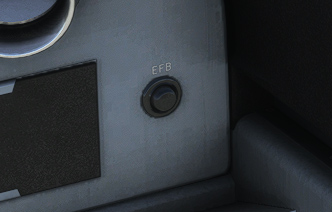
It can be opened and closed thanks to a cockpit button.
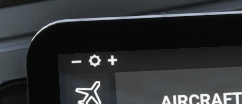
When opened, screen brightness can be set from the top bar.
EFB can be closed with a click on its home button. It can be moved on the seat with a click on its right border.
Aircraft menu
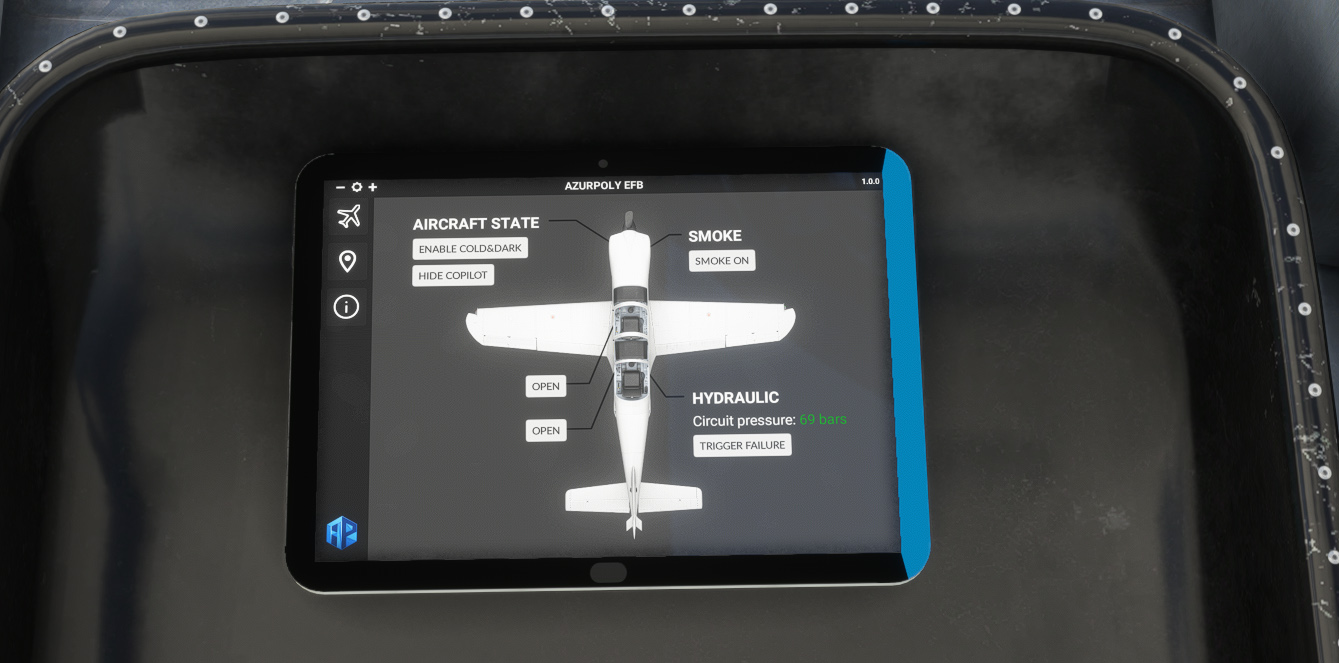
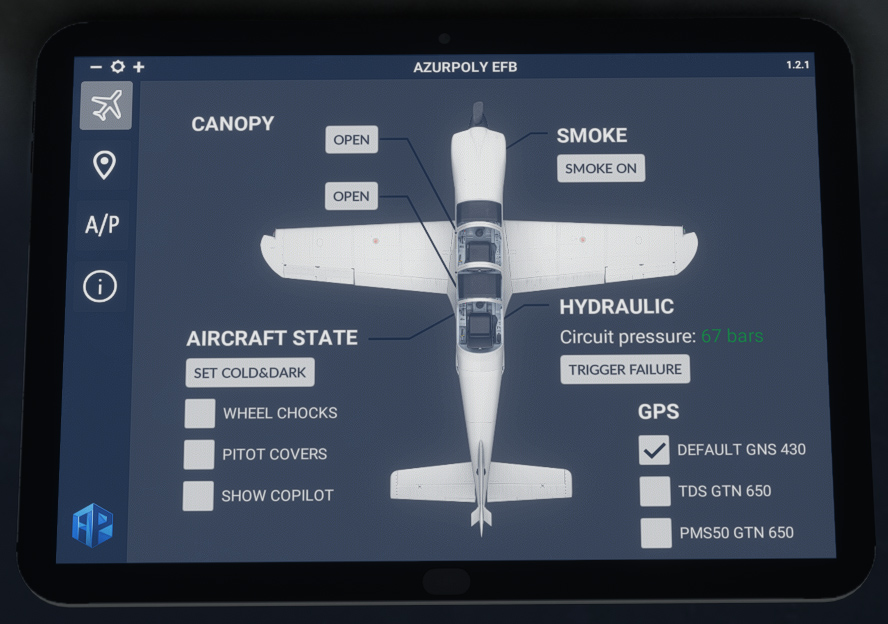
You can put here the aircraft in “cold and dark” mode. Engine will be turned off, systems will be off and ground protections will be put in the aircraft exterior. You can manage wheel chocks and pitot covers independently.
You can also open and close pilot and copilot canopy from here.
Copilot can be hidden in exterior view.
You can trigger hydraulic failure, as this type of failure is not natively supported by MSFS. You will see main hydraulic pressure drops, which will let you practice emergency procedures in case of hydraulic failure, to maneuver landing gear.
You can turn on or off the smoke system (which can also be done with the switch on the main panel).
As explained in GPS section, you can switch between regular GNS 430 and PMS50 or TDS GTN 650 (if you have them installed).
Map menu
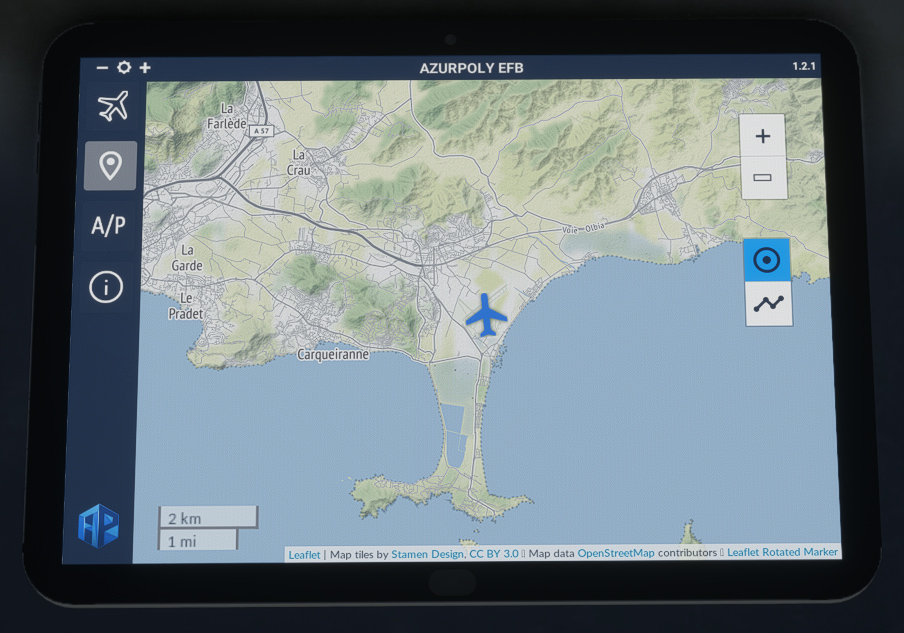
This menu consists of a map showing current aircraft position.
Different controls on the right part allow to interact with the map:
-
Zoom buttons.
-
Button to stop auto centering to aircraft position.
-
Trajectory button to show or hide aircraft path.
Autopilot
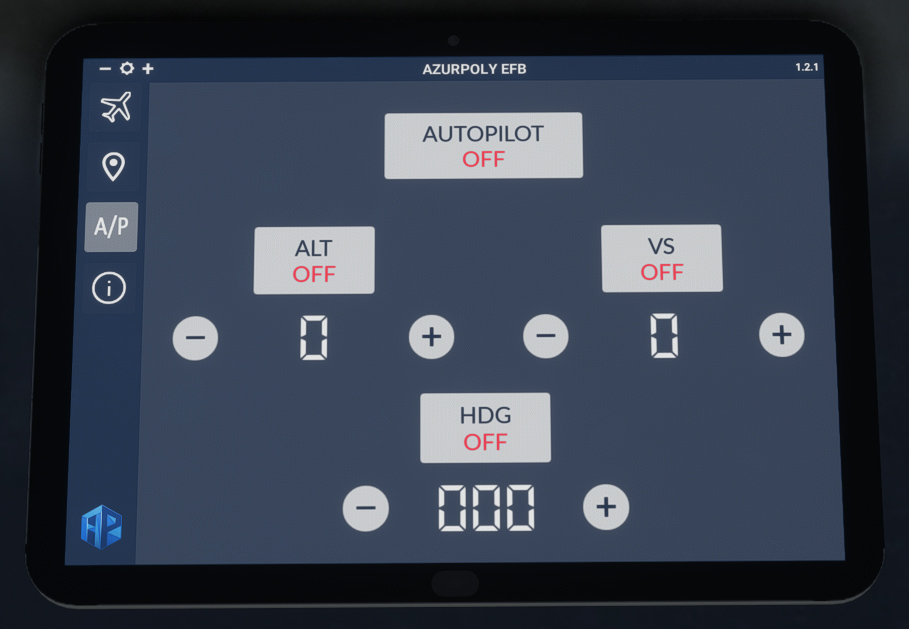
The TB-30 is not equipped with an autopilot. However, you will find an autopilot menu in the EFB, allowing you to hold altitude, vertical speed and heading as you wish.
Below ALT button, you may select a target altitude using ⊕ and ⊖ buttons. When aircraft is reaching this altitude, ALT mode will be enabled automatically and altitude will be maintained.
Please note that ALT mode does not allow to change altitude, but only to capture a specific altitude. To change your altitude using the autopilot:
-
Select the altitude you want to reach (below ALT button).
-
Select the vertical speed you want to maintain and enable vertical speed mode (VS button).
-
Autopilot will automatically capture and keep selected altitude.
With HDG button, you can follow a target heading selected with the buttons below.
You can also manage altitude and heading target values from the G5 unit.
Version menu
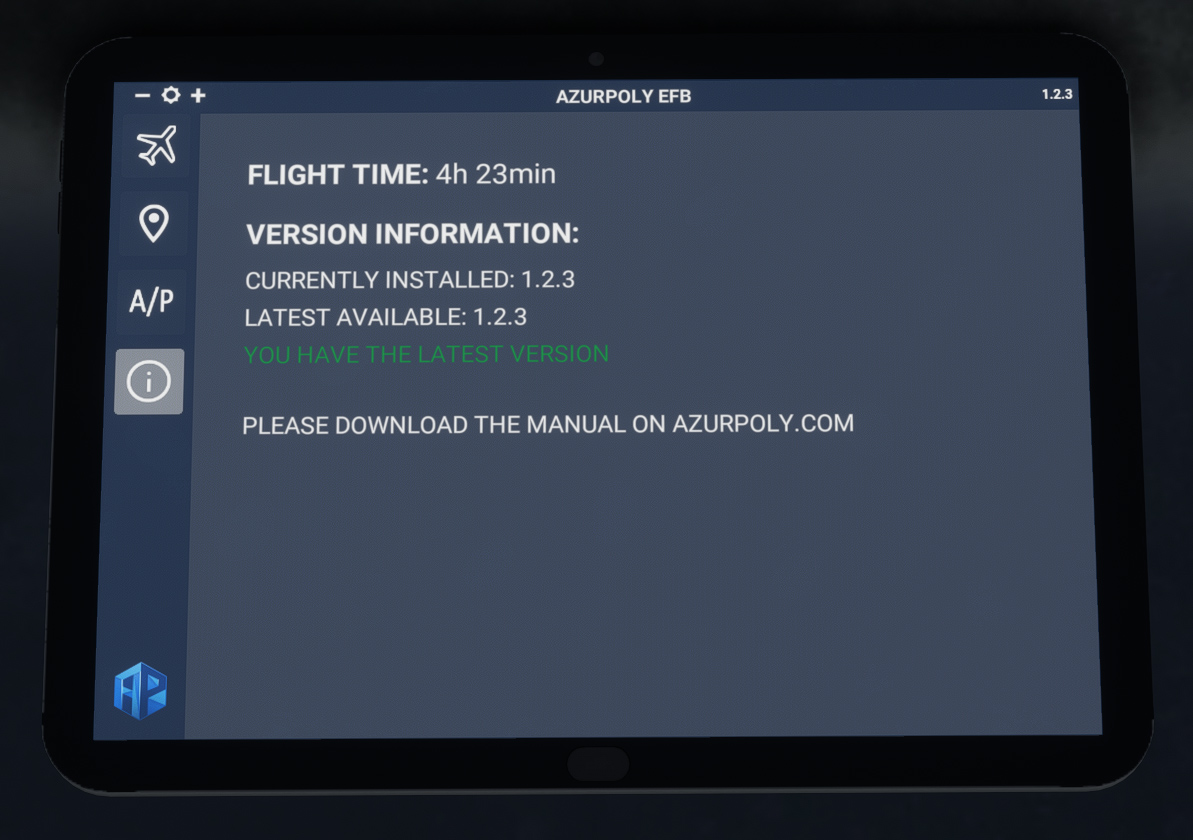
This menu indicates version of the aircraft currently installed on your machine.
A message will be displayed if an update is available.
You can also see how much time you spent within the aircraft!