Controls assignments
In addition to default control assignments, our aircraft is using custom variables and events to manage all its systems.
Custom variables are called L Vars (prefixed with “L:”) and custom events are called H Events (prefixed with “H:”).
If you have external hardware and you are using specific software like FSUIPC or SPAD, you can assign buttons or switches to those variables and events.
In order to see custom variables related to the aircraft, you need to enable Developer mode (general options) and go to Tools > Behaviors > Local Variables on top menu bar. All custom variables are prefixed with “AZP_OV10” keyword.
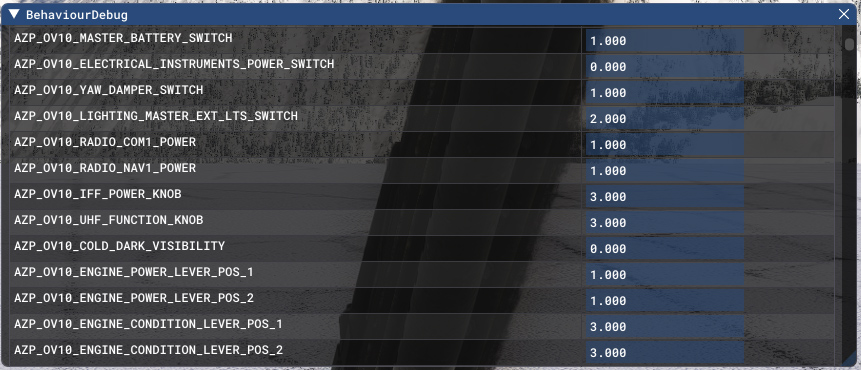
However, changing those L VARS is not always enough and you may need to call the events described in the next section.
Custom events
Here is non-exhaustive list of main H Events that you can use in order to interact with aircraft systems.
| NAME | H EVENT | DESCRIPTION |
|---|---|---|
| EFB display | AZP_OV10_TOGGLE_EFB_POWER | Display or hide EFB tablet |
| EFB position | AZP_OV10_TOGGLE_EFB_POSITION | Switch between the two EFB positions |
| Chocks display | AZP_OV10_TOGGLE_CHOCKS | Display or hide wheel chocks |
| Covers display | AZP_OV10_TOGGLE_COVERS | Display or hide aircraft covers |
| Yoke display | AZP_OV10_TOGGLE_YOKE_VISIBILITY | Display or hide pilot's yoke |
| Smoke system | AZP_OV10_SMOKE_TOGGLE AZP_OV10_SMOKE_OFF AZP_OV10_SMOKE_ON | Display or hide smoke |
| Starter switch | AZP_OV10_STARTER_L_ABORT AZP_OV10_STARTER_L_RUN AZP_OV10_STARTER_L_START AZP_OV10_STARTER_R_ABORT AZP_OV10_STARTER_R_RUN AZP_OV10_STARTER_R_START | Set starter switch (left and right engine) position |
| Generator switch | AZP_OV10_GENERATOR_LEFT_OFF AZP_OV10_GENERATOR_LEFT_ON AZP_OV10_GENERATOR_LEFT_TEST AZP_OV10_GENERATOR_RIGHT_OFF AZP_OV10_GENERATOR_RIGHT_ON AZP_OV10_GENERATOR_RIGHT_TEST | Set generator switch (left and right engine) position |
| Master battery switch | AZP_OV10_MASTER_BATTERY_OFF AZP_OV10_MASTER_BATTERY_ON AZP_OV10_MASTER_BATTERY_EMER | Set master battery switch position |
| Instruments power switch | AZP_OV10_ELECTRICAL_INSTRUMENTS_POWER_OFF AZP_OV10_ELECTRICAL_INSTRUMENTS_POWER_INV1 AZP_OV10_ELECTRICAL_INSTRUMENTS_POWER_INV2 | Set instruments power switch position |
| Exterior lights switch | AZP_OV10_LIGHTING_MASTER_EXT_OFF AZP_OV10_LIGHTING_MASTER_EXT_ON AZP_OV10_LIGHTING_MASTER_EXT_ON_LDG | Set exterior lights switch position |
| Engine airstart switch | AZP_OV10_ENGINE_AIRSTART_ON_1 AZP_OV10_ENGINE_AIRSTART_CRANK_1 AZP_OV10_ENGINE_AIRSTART_AUTO_1 AZP_OV10_ENGINE_AIRSTART_ON_2 AZP_OV10_ENGINE_AIRSTART_CRANK_2 AZP_OV10_ENGINE_AIRSTART_AUTO_2 | Set airstart switch (left and right engine) position |
| Engine fire handles | AZP_OV10_FUEL_FIRE_HANDLE_TOGGLE_LEFT AZP_OV10_FUEL_FIRE_HANDLE_TOGGLE_RIGHT | Toggle emergency fire handle (left and right engine) |
| Flaps lever | AZP_OV10_FLAPS_LEVER_UP AZP_OV10_FLAPS_LEVER_HOLD AZP_OV10_FLAPS_LEVER_TAKEOFF AZP_OV10_FLAPS_LEVER_DOWN | Set flaps lever position |
| Wiper power switch | AZP_OV10_WIPER_PARK AZP_OV10_WIPER_OFF AZP_OV10_WIPER_ON | Set wiper switch position |
| Wiper speed switch | AZP_OV10_WIPER_SPEED_TOGGLE | Toggle wiper speed |
| Stores emergency release | AZP_OV10_STORES_EMERGENCY_RELEASE_PRESSED | Release all external stores (including external tank) |
| Stores emergency jettison | AZP_OV10_STORES_EMERGENCY_JETTISON_TOGGLE | Release all external stores (except external tank) |
Bind power levers with FSUIPC
Because of a simulator limitation, power levers cannot be bound to a controller axis using external software (FSUIPC, Spad, Axis And Ohs, etc.). A ticket as been raised to Asobo and we are waiting for a fix on their side.
In the meantime, a workaround has been implemented in order to move power levers using a L var, named L:AZP_OV10_THROTTLE_AXIS_EXTERNAL.
You will need to create a script to assign current axis value (-16384/+16384) to this L var, for each engine. The procedure is explained here for FSUIPC, but the same can be achieved with other software, please check their respective documentation.
You first need to locate events.txt file located in root FSUIPC folder (likely C:/FSUIPC7). Open the file and add the following lines on top:
//AzurPoly

AZP_OV10_Power_Lever_1_Set#@ (>L:AZP_OV10_THROTTLE_AXIS_EXTERNAL:1, number)

AZP_OV10_Power_Lever_2_Set#@ (>L:AZP_OV10_THROTTLE_AXIS_EXTERNAL:2, number)
Once file is saved, open FSUIPC and go to axes settings:
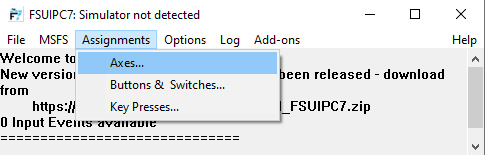
For left and right axis:
-
Select “Send Preset to FS” action.
-
Choose the correct preset (e.g. “AZP OV10 Power Lever 1 Set” for left engine).
-
Apply changes.
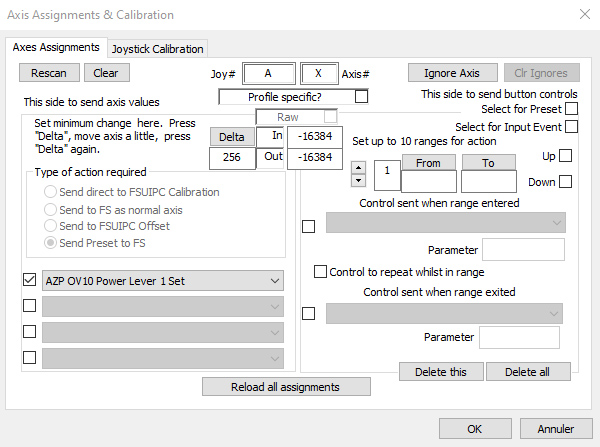
If needed, you can create a custom profile to apply this assignment only when flying the Bronco.
You should now be able to move power levers using your flight controllers.