MSFS 2024 specific
You will find in the section everything specific to the Jaguar for MSFS 2024 (native add-on).
This product adds interactive preflight actions and a weapons system specially tailored for the Jaguar.
Preflight actions
In Flight Simulator 2024, the flight will start on the apron at the exterior of the aircraft.
Before entering the aircraft, you need to click on ground equipment, to remove it before flight:
-
Chocks.
-
Engine intake covers.
-
Pitot and static covers.
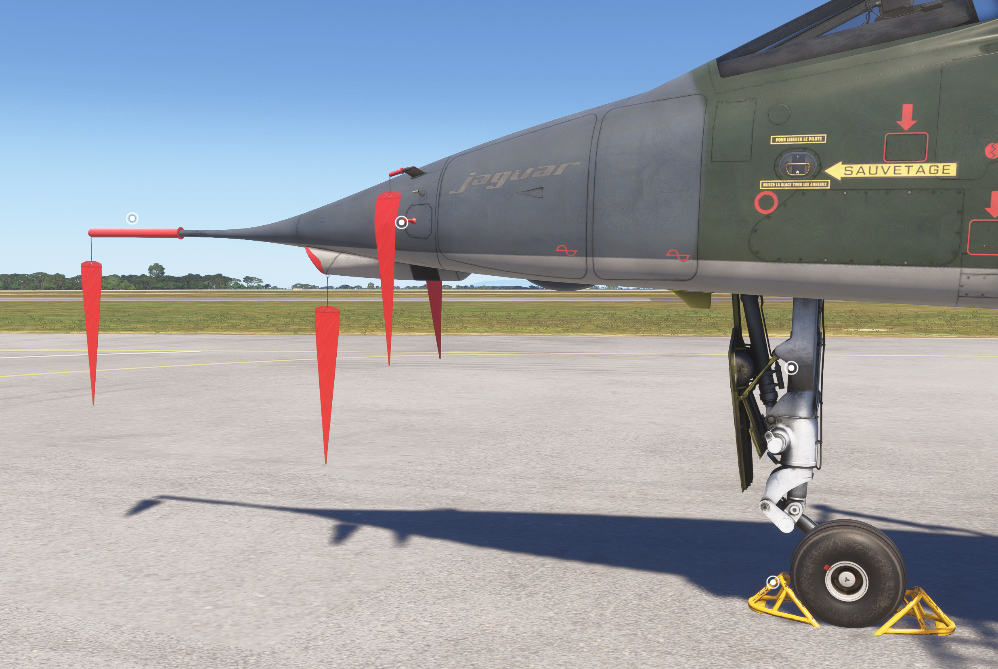
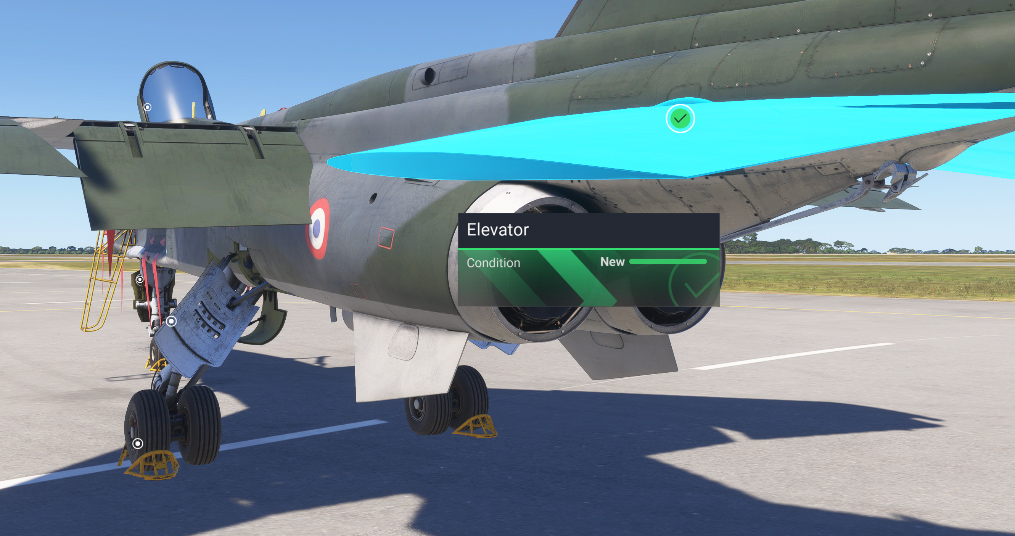
By walking around the aircraft, you can inspect various parts (struts, rudder, elevator, etc) and check their condition before flying. Each part to inspect or remove is indicated by a circled dot.
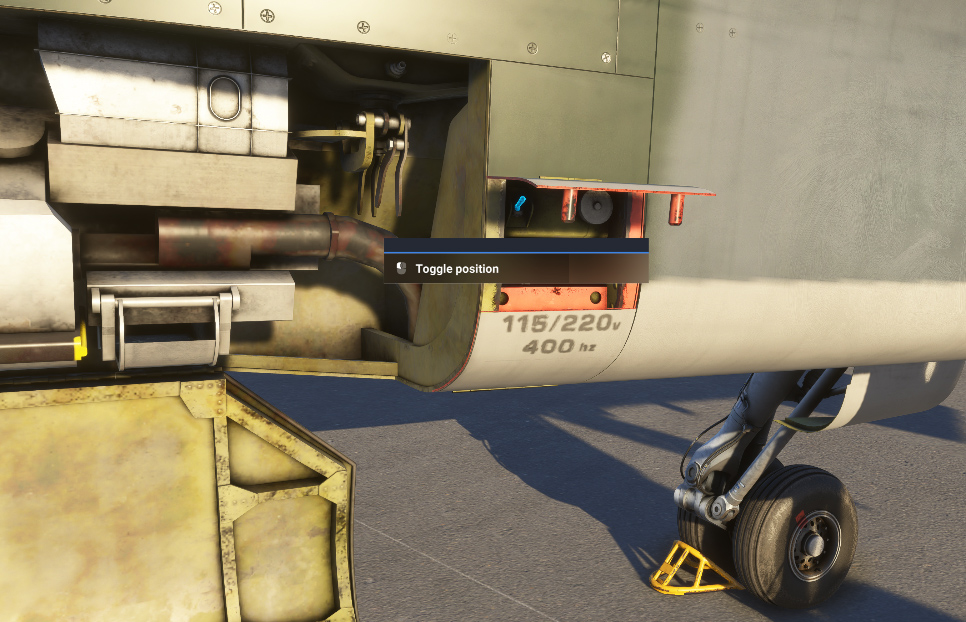
In order to inspect landing gear compartment, you can open GPU socket compartment and click on the switch located inside. This will open landing gear doors on both sides.
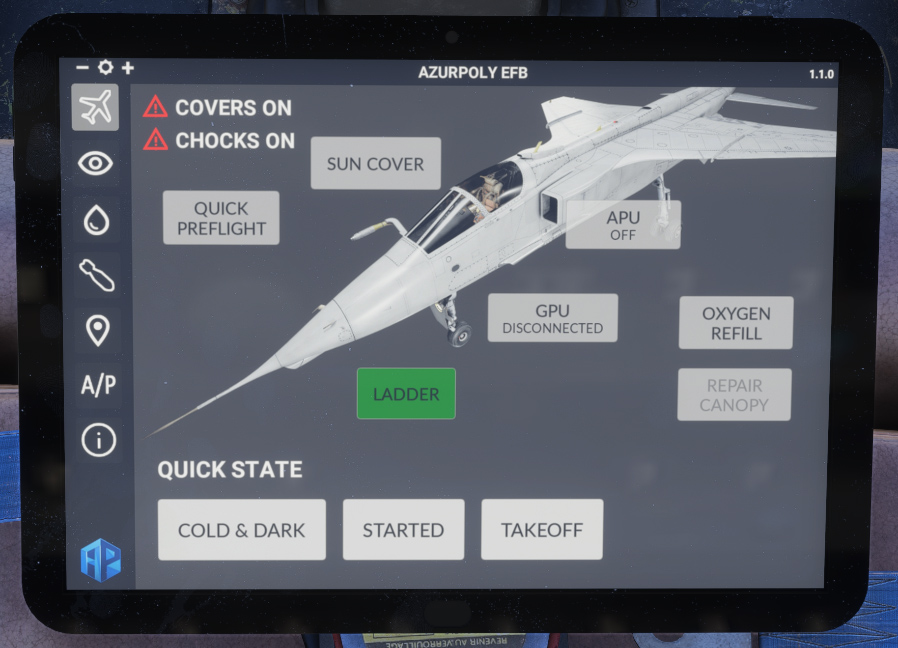
You can also achieve the same from the EFB.
Finally, in order to go inside the aircraft, you can walk in front of the ladder, and click on it, continuing to walk straight at the same time. You will climb the ladder and arrive in front of the cockpit.
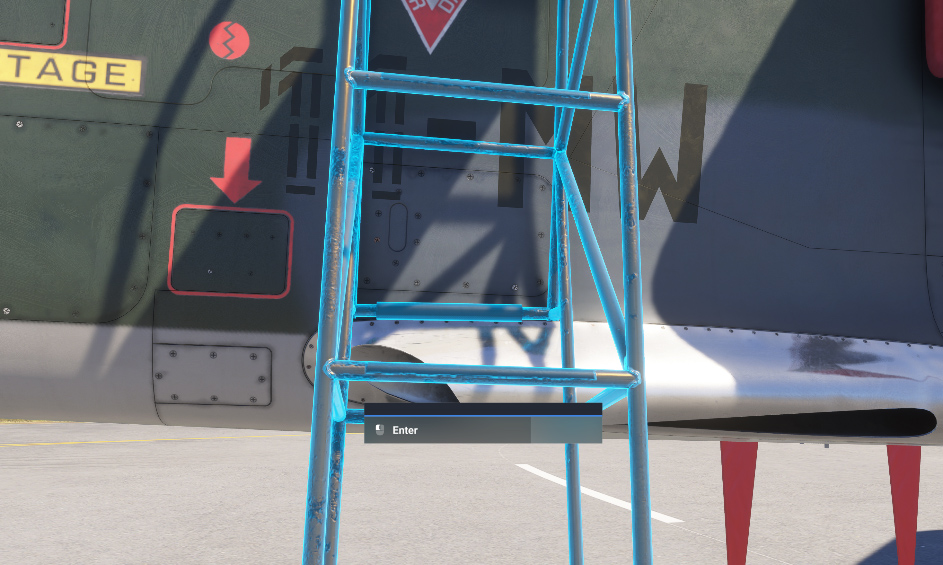
Finally, click on the canopy frame to enter the aircraft.
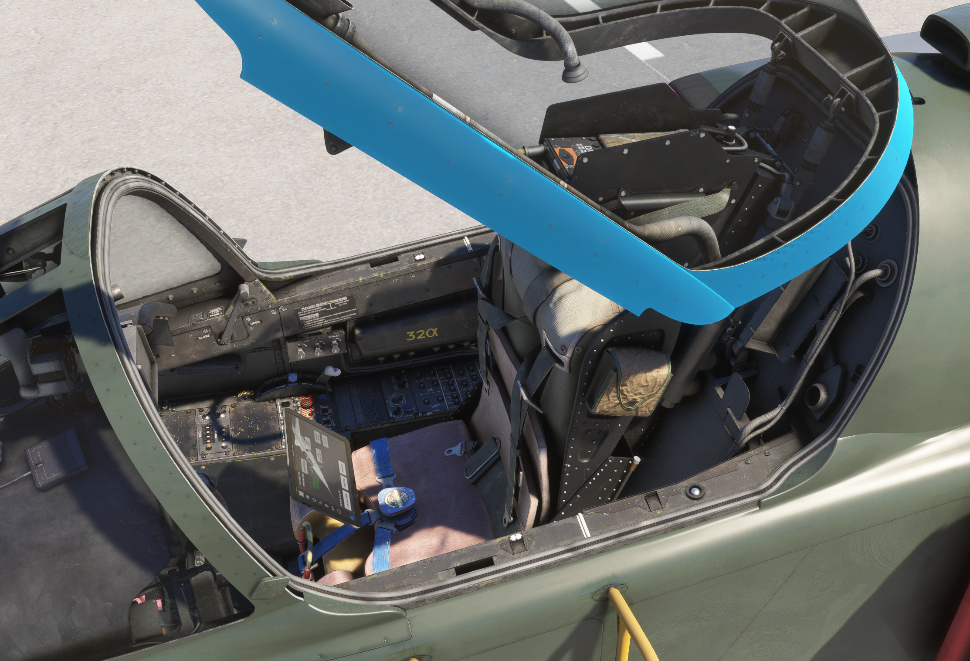
You can also use a keyboard shortcut (default Maj + C) to go directly inside the cockpit.
From the EFB (first tab), you can remove the ladder and click on QUICK PREFLIGHT button to remove all covers and chocks. You will see warning texts if you forgot to remove them, and the engine will not start with intake covers on.
Weapons system
The Jaguar comes in MSFS 2024 with a custom weapons system, which includes missiles and bombs release, external fuel tanks jettison and a working cannon.
All weapons follow realistic trajectories, with smooth animations from the pylon to the impact zone, and accurate visual effects (at day and night) both in-flight and on impact.
Our weapons system is purely visual and does not cause actual damage to the environment or other aircraft. Weapons are not shared in multiplayer and cannot aim real targets.
Enable weapons
Weapons can be used directly if you bought the product on third-party stores (Contrail, SimMarket).
If you purchased the aircraft on Microsoft Marketplace, weapons system is disabled by default as it is forbidden by Marketplace rules.
If you are on PC, you need to install a small patch that you can download on our website in order to enable the feature.
If you are on Xbox, weapons system cannot be used, unfortunately.
Weapons panel
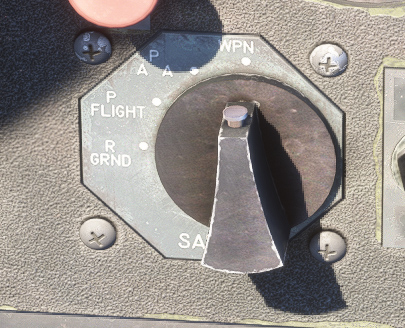
To use the weapons, you first need to set weapons master knob to “WPN” (armed) position.
From any stage of the flight, you can add or remove external payload from the EFB that you wish to use.
In order to launch weapons and use the guns, a dedicated panel is located on right console.
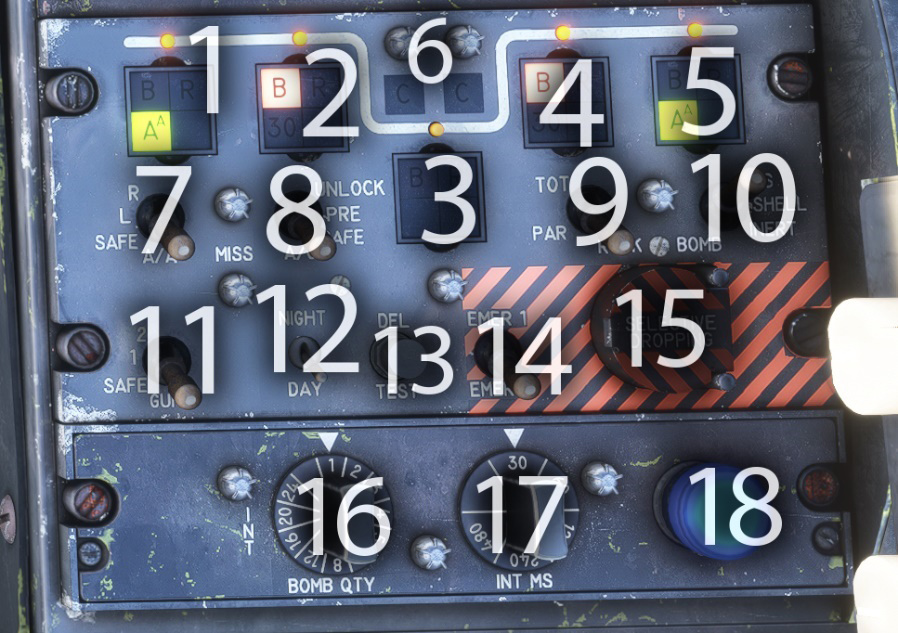
| # | Description | # | Description |
|---|---|---|---|
| 1 | Station 1 weapon selection button and lights | 10 | Bombs |
| 2 | Station 2 weapon selection button and lights | 11 | Guns safety switch |
| 3 | Station 3 weapon selection button and lights | 12 | Lights intensity switch (day/night) |
| 4 | Station 4 weapon selection button and lights | 13 | Panel lights test button |
| 5 | Station 5 weapon selection button and lights | 14 | Selective dropping mode switch |
| 6 | Guns (canon) ready light | 15 | Selective dropping button |
| 7 | Air/air missile safety switch | 16 | Intervalometer bombs quantity knob |
| 8 | Air/ground missile safety switch (INOP) | 17 | Intervalometer delay knob (INOP) |
| 9 | Rockets mode switch (INOP) | 18 | Bombs selection light |
Air/ground weapons
In order to launch air/ground weapons (bombs), click on stations weapon selection buttons depending on the bombs you want to launch (in the example above, bombs are selected for stations 2 and 5).
Using the HUD in air/ground mode, you can visualize the expected impact point of the bomb. Please note that this is just an estimate, as the impact point can vary a lot depending on many factors (initial speed, wind, height, etc).
The “R” sign is displayed when a bomb drop is possible:
-
Height above 50 feet.
-
Indicated speed above 200 kts.
-
Subsonic speed.
-
Pitch and bank below 30 degrees.
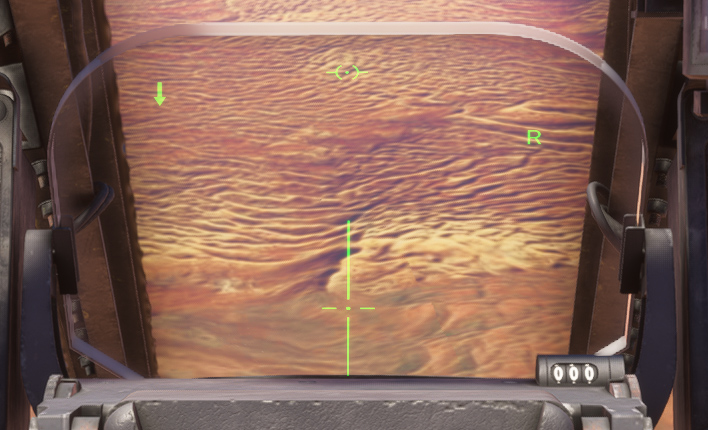
In order to trigger the launch, you need to assign a button to TRIGGER HORN event (in controls options).
At each click, a bomb is dropped approximately one second later, depending on what is selected on weapons panel, and the payload of the aircraft.
If you wish to drop several bombs at the same time, you can use the bombs quantity knob on intervalometer panel to select the quantity of bombs to drop. Please note that, because of software limitations, there is a 2 seconds delay between each object dropped.
Once the bomb reaches the ground, it will explode and a smoke column will remain above the impact point.
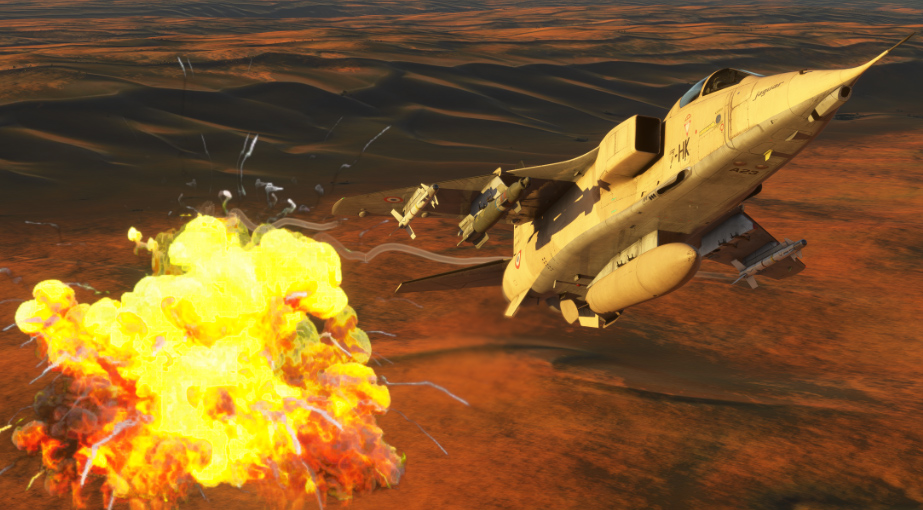
“AS37 Martel” weapon (Jaguar A) is considered as a bomb in the simulator, even though it is an air/ground missile in reality.
Air/air weapons
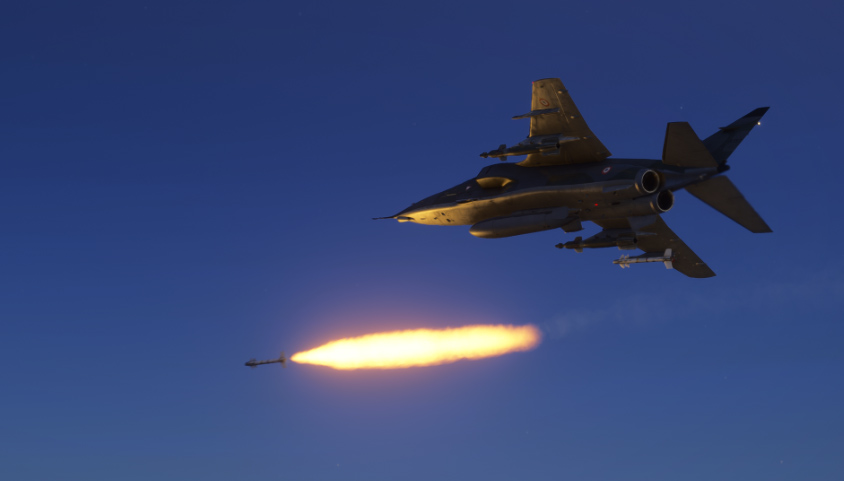
Our Jaguar can carry up to two air/air weapons: Magic missiles on the Jaguar A and AIM-9 Sidewinder missiles on the Jaguar GR1 (mounted on over-wing pylons).
First ensure that “AA” is selected on station 1 or 5 buttons (same with the Jaguar GR1 even though over-wing stations are not really 1 and 5).
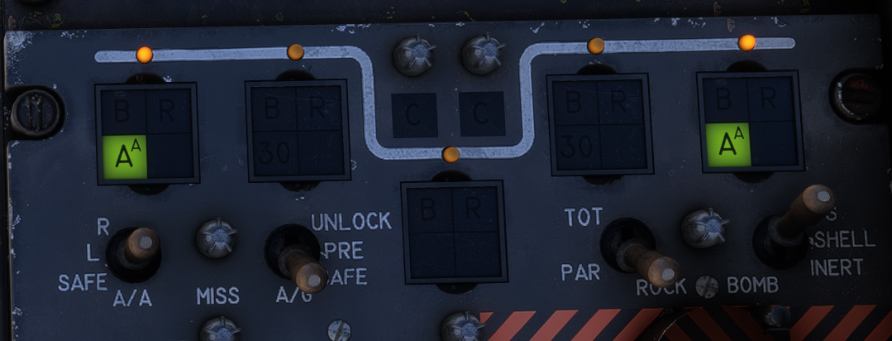
Only one missile can be launched at a time, and you need to set the air/air missile safety switch to the desired position (“L” for left, “R” for right).
Missile launch is possible only if:
-
Height is above 50 feet.
-
Indicated airspeed is above 200 kts.
The same TRIGGER HORN event will launch the missile.
Guns
In order to use guns, guns safety switch needs to be moved to:
-
Position 1 to fire a salvo.
-
Position 2 to fire freely.
Please note that ammunition is infinite.
You can trigger the guns with WAR EMERGENCY POWER event binding.
Inert stores jettison
The Jaguar has different ways of jettisoning external stores in case of emergency, for example in case of engine failure after takeoff where the weight may need to be reduced drastically.
The first way is to use the black/yellow striped button above left console, that will drop all external stores (including fuel tanks and weapons). All weapons are jettisoned inertly (they will not explode once reaching the ground).
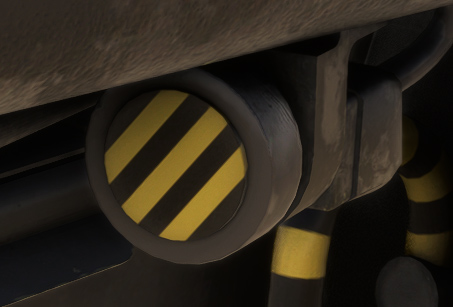
You can trigger an emergency stores release with TOGGLE WING FOLD event binding.
Even if it was not possible to drop external tanks independently in the real aircraft, you can do it from the EFB after selecting an external tank (“DROP TANK” button).
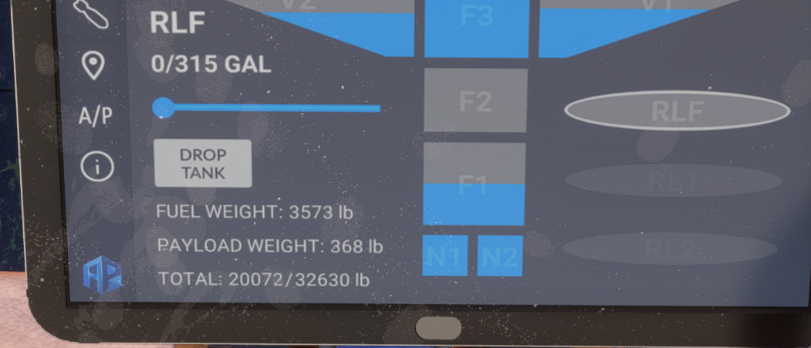
The other way is the selective dropping that you can trigger on weapons selection panel. Weapons that are selected on the panel will be jettisoned. External tanks are not jettisoned.
Selective dropping has two possible modes:
-
Stores dropped one by one (EMER 1).
-
Stores all dropped at the same time (EMER 2).
Selective dropping can be used only with master weapons armed. All weapons are jettisoned inertly.
Landing drag chute
The Jaguar had a drag chute fitted in order to reduce landing distances on small fields.
The parachute is fitted in the black cone just above engine nozzles.
In order to deploy it, parachute handle located above left console must be pulled. You can also use AUTOBRAKE_HI_SET (set autobrake high) binding with any of your controllers.
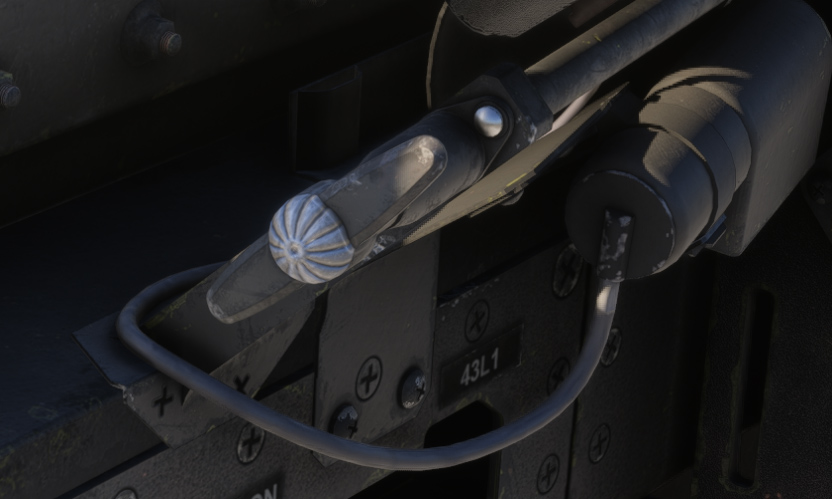
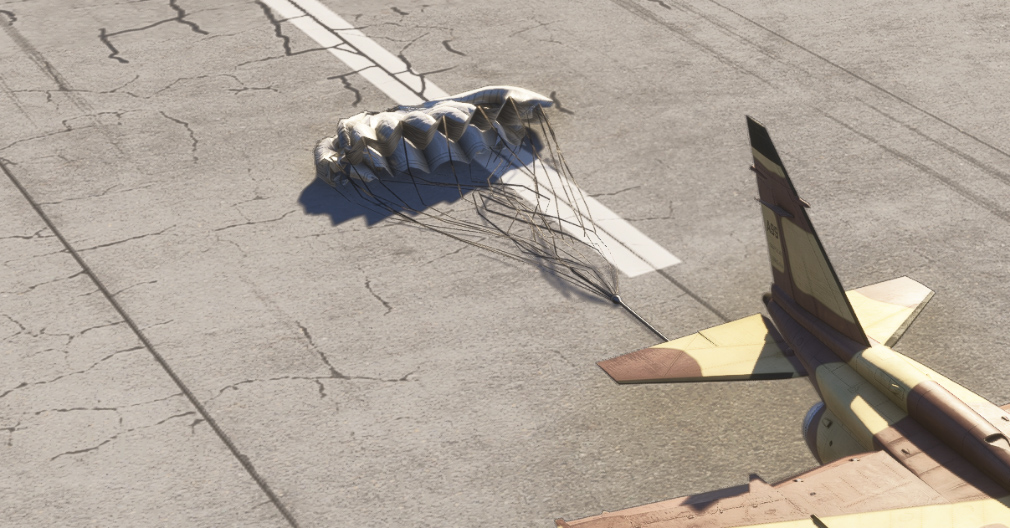
The chute will be deployed only once landing gear is in contact with the ground, and will drastically brake the aircraft thanks to its aerodynamic drag.
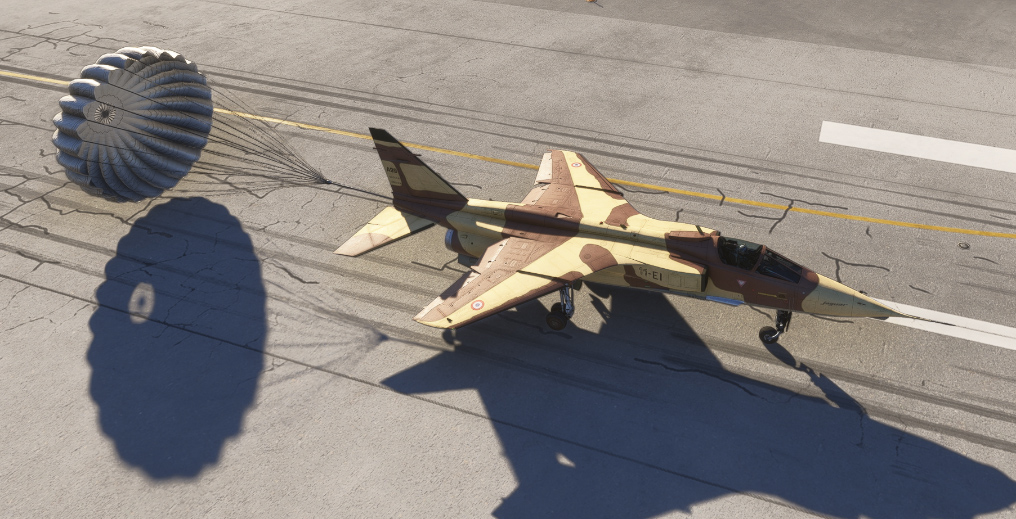
Once the aircraft has been slowed, pushing parachute handle will release it. The object will stay where it has been released.