Electronic flight bag
To help managing all actions related to the aircraft, an EFB has been implemented, similarly to all our other aircraft.
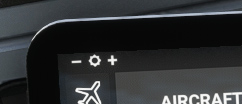
Screen luminosity can be set from the top bar.
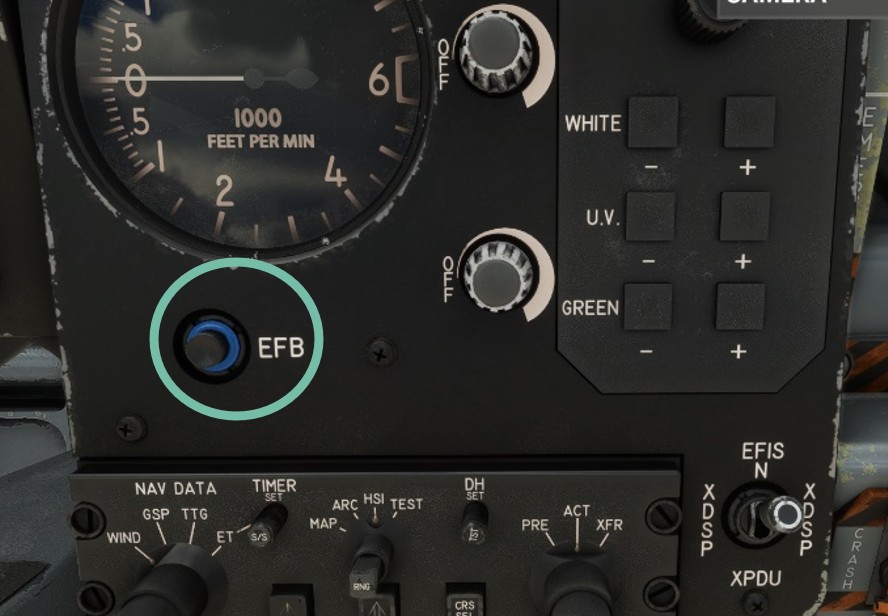
EFB can be closed with a click on its main button, and reopened from a button on front panel.
Aircraft
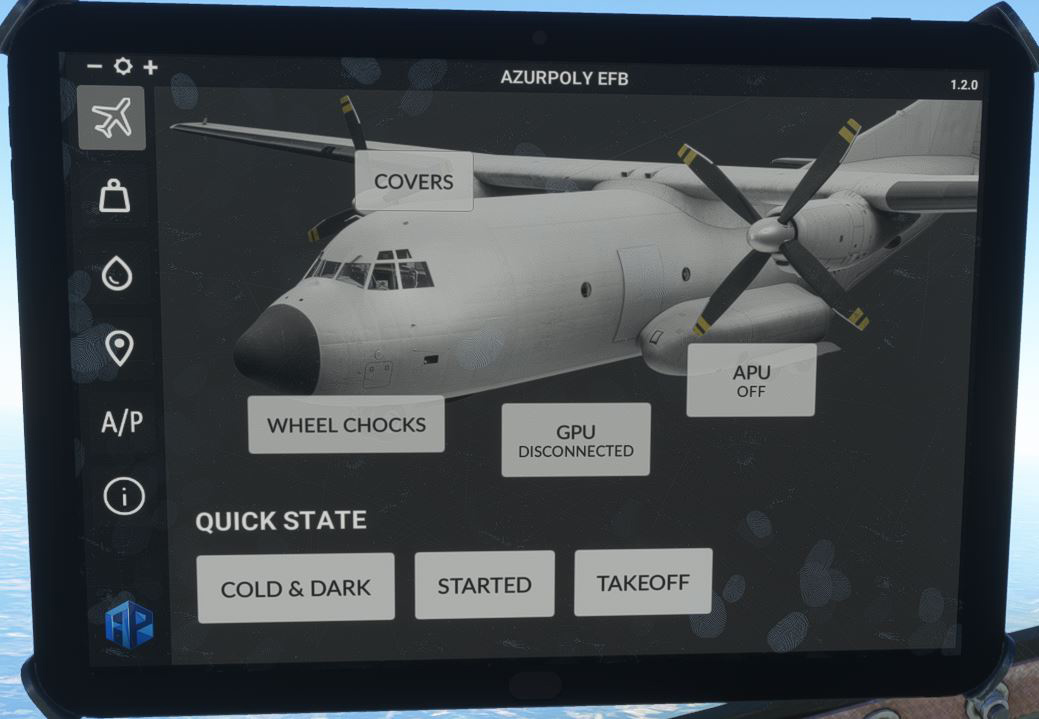
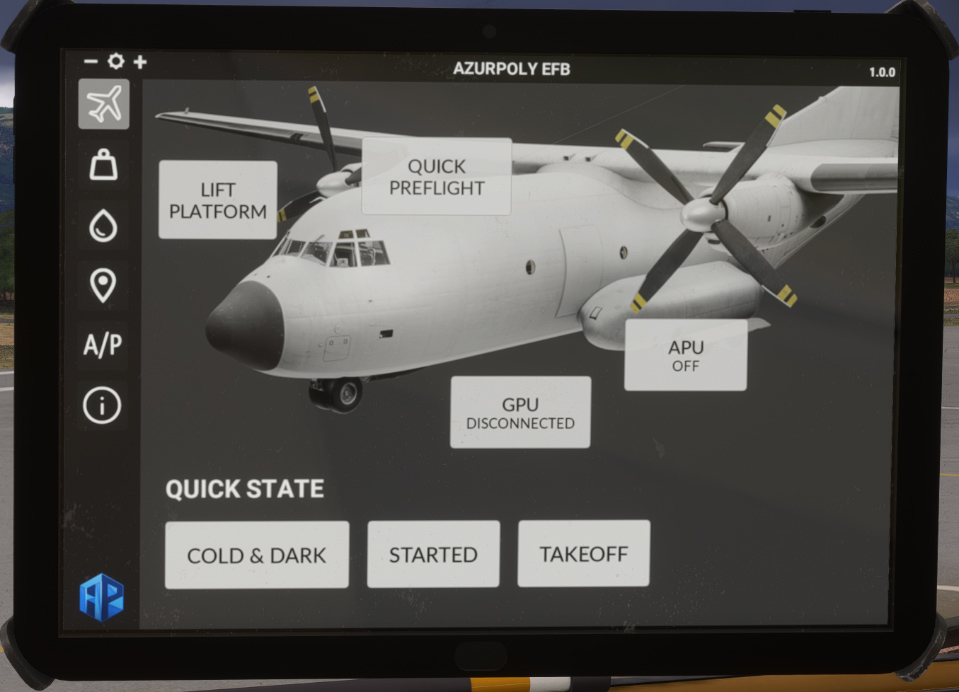
First page covers main functions related to the aircraft:
-
APU start and stop.
-
GPU connecting and disconnecting.
-
Wheel chocks display.
-
Aircraft covers display.
To bypass manual actions, pre-defined configuration can be set:
-
Cold & dark (all off).
-
Aircraft started.
-
Takeoff configuration.
As covers are managed differently, you will see a QUICK PREFLIGHT button instead. Clicking on this button will auto-complete all preflight actions (remove covers, etc).
A second button allows to display the scissor lift next to left wing.
Payload
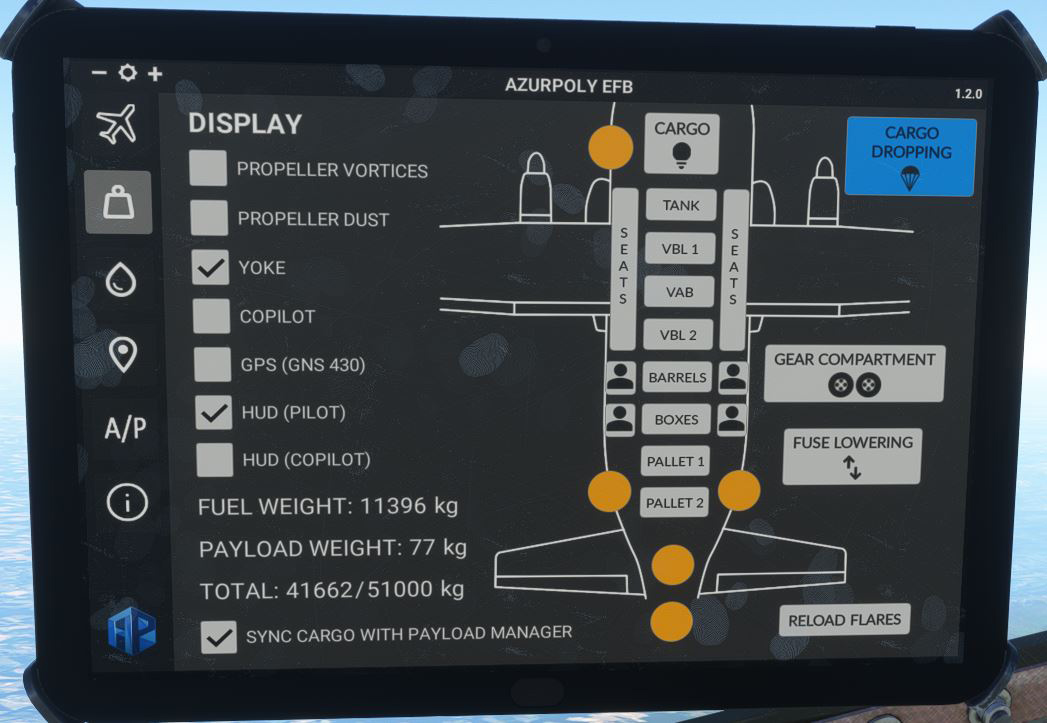
This page is mainly related to cargo and doors management.
On left column, several checkboxes for:
-
Propeller vortices display.
-
Propeller dust display.
-
Yoke display.
-
Copilot display.
-
GPS unit display.
-
HUD display (pilot and copilot).
-
Disable payload weight syncing with current aircraft weight.
Propeller effects are disabled by default to avoid FPS drop.
Just below, a weight recap is displayed with fuel weight, payload weight and total weight. You can see that maximum weight is easily reached when cargo items are being added, which is one of the weaknesses of the Transall.
Inside aircraft diagram, you can choose between several items to add inside the cargo bay. A preview picture is displayed when hovering above a button, and aircraft weight is updated automatically when an item is added or removed.
Other functions are:
-
Door opening and closing when clicking on yellow circles (see doors section).
-
Cargo lights switch button.
-
Gear compartment door button.
-
Fuse lowering and raising button.
-
Flares reloading button.
-
Cargo dropping button.
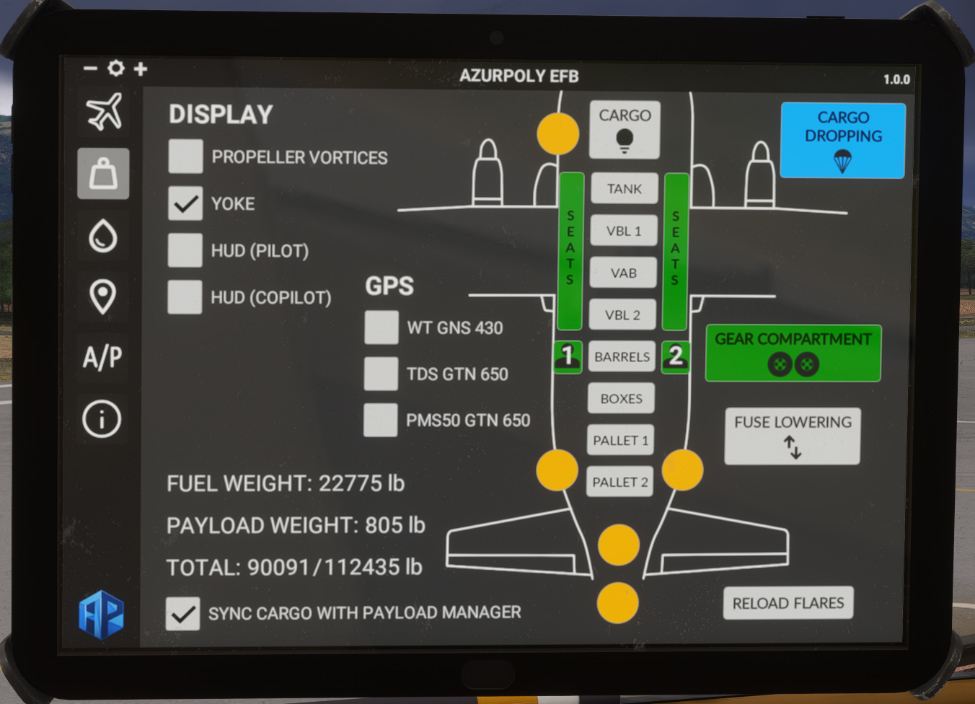
In MSFS 2024, you will observe few differences on this page:
-
Propeller dust is managed by the simulator and not optional anymore.
-
Copilot display is managed from the simulator tablet.
-
Various GPS options are available (Working Title GNS 430, PMS50 GTN 650, TDS Sim GTN 650).
Fuel
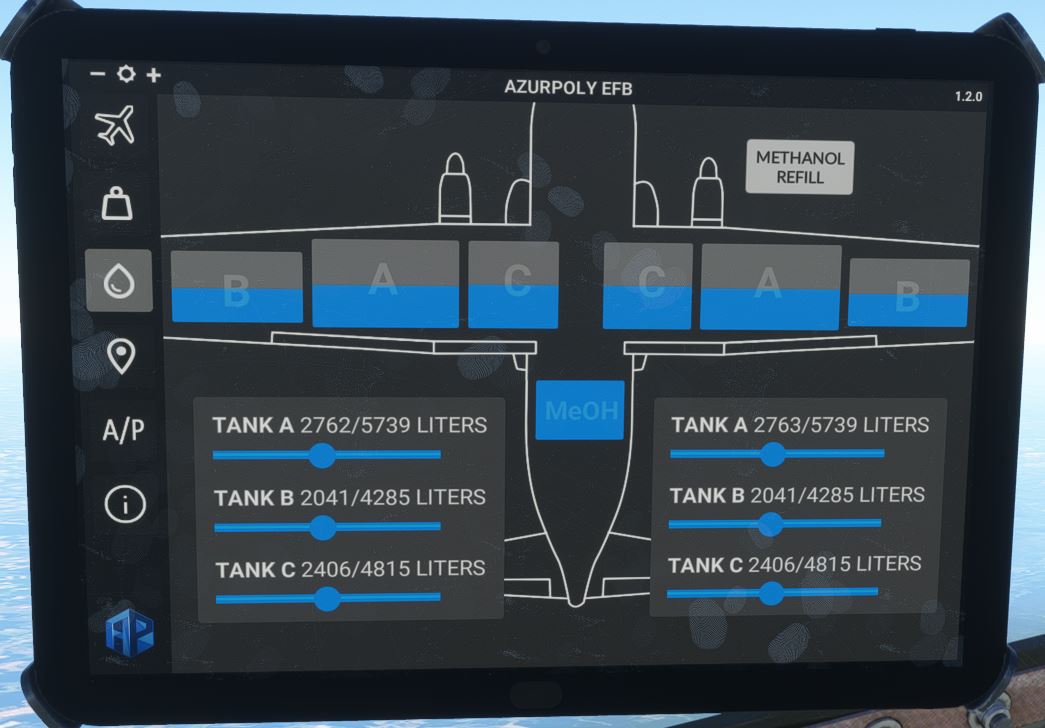
This page shows fuel quantity in each of the six tanks, where you can use sliders to update quantity directly.
You can achieve the same in the default fuel menu.
It also shows current methanol level with a button to refill its tank.
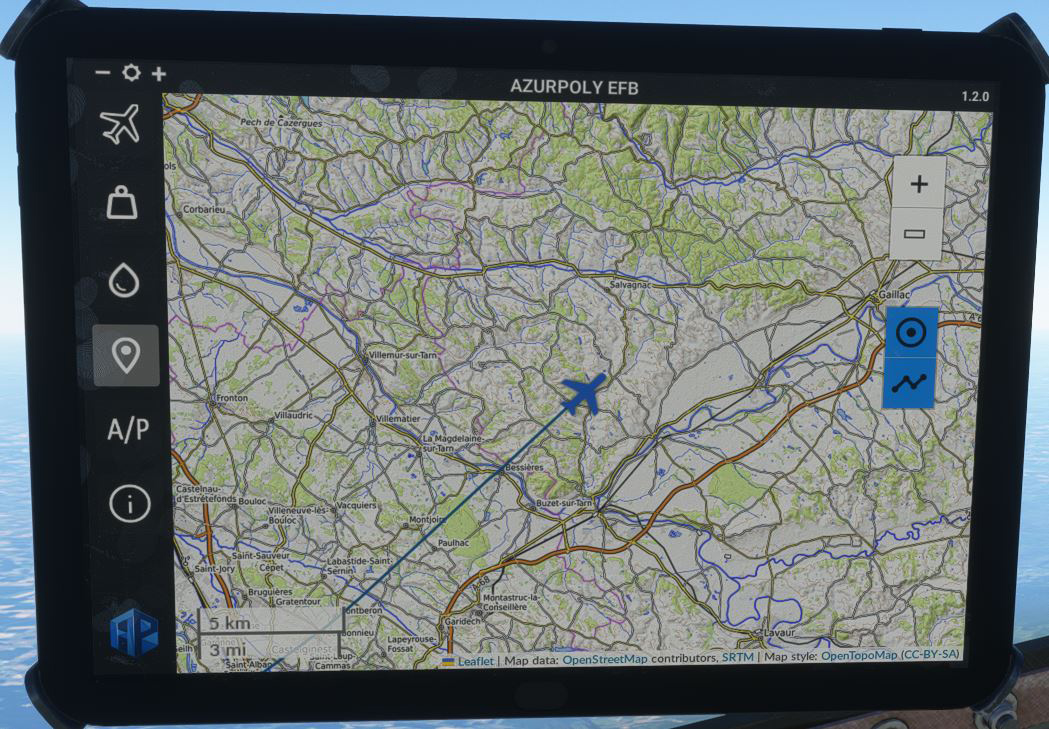
Map
This menu consists of a map showing current aircraft position.
Different controls on the right part allow to interact with the map:
-
Zoom buttons.
-
Button to stop auto centering to aircraft position.
-
Trajectory button to show or hide aircraft path.
Autopilot
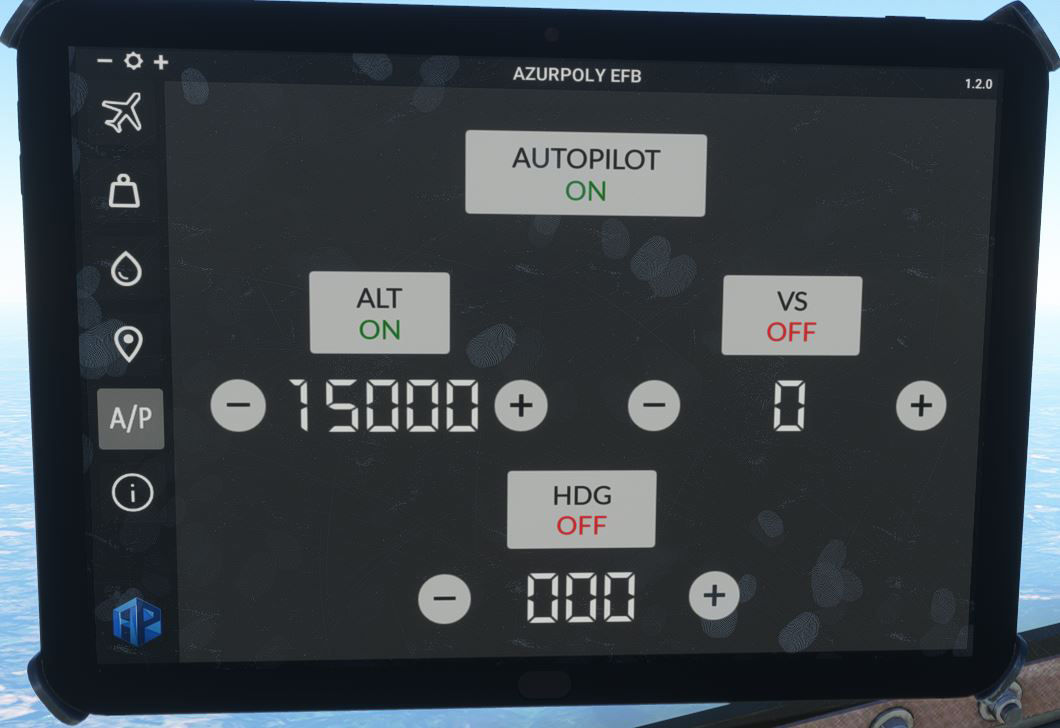
The aircraft is already fitted with an autopilot, however this menu allows an easier usage for simple altitude and heading hold modes. Autopilot will have the exact same behavior when used from the cockpit panel and from the EFB.
When turning ALT or HDG mode on, current altitude/heading will be used by default, and you can change the values with ⊕ and ⊖ buttons.
A precise vertical speed can be maintained during climb/descent with VS button and the target value below.
Once target altitude is reached, VS mode is disabled automatically and ALT mode is enabled. You will need to change target altitude to use VS mode again.
Information
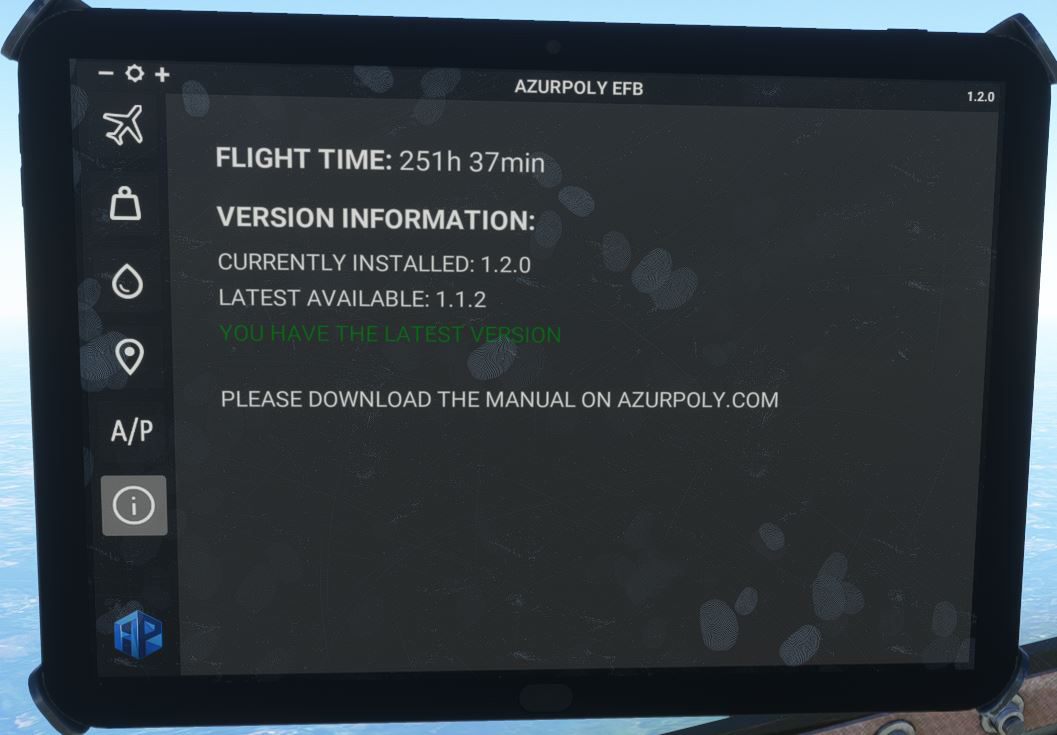
This menu indicates version of the aircraft currently installed on your machine. A message will be displayed if an update is available.
You can also see your total time spent inside the Transall. For the developers, that's a lot of time!