Electronic flight bag
The aircraft is equipped with a tablet running a custom electronic flight bag (EFB), completely independent of the simulator's built-in EFB.
It is used to configure various aircraft settings and perform the actions described in this section.
The EFB can be shown or hidden using the "home" button or the dedicated button on the upper instruments panel.

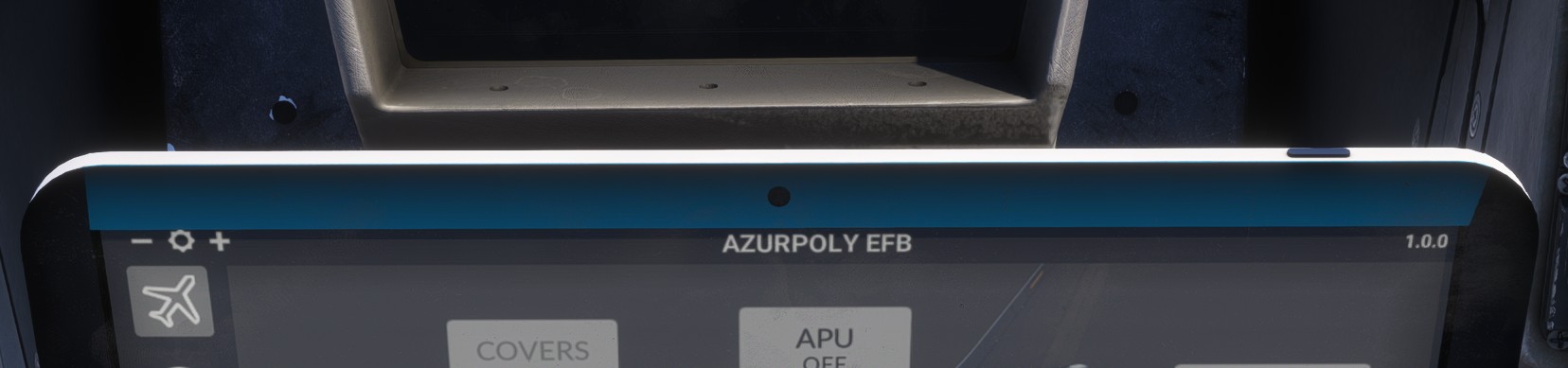
The tablet can be moved freely by clicking and dragging its top border.
The units displayed in the EFB depend on your simulator settings. You can switch between kilograms and pounds by changing Units of Measurement in Language settings.
If an aircraft screen is positioned directly behind the EFB, the overlapping area of the EFB cannot be interacted with. It is therefore recommended to move the EFB only over areas where there are no aircraft screens behind it.
Aircraft
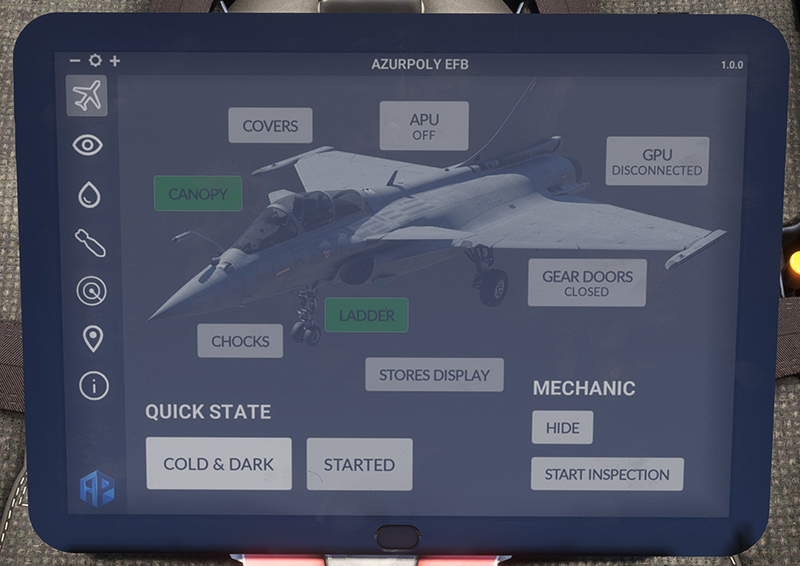
The first tab contains the main aircraft-related controls:
-
COVERS: install or remove all aircraft covers. -
CANOPY: open or close the canopy. -
CHOCKS: install or remove the wheel chocks. -
LADDER: install or remove the pilot access ladder. -
STORES DISPLAY: display all available external stores on the ground in front of the aircraft. -
APU: start or stop the APU. -
GPU: show or hide the ground power unit. -
GEAR DOORS: open or close the landing gear doors.
Some buttons are disabled when the corresponding action cannot be performed. For example, the canopy cannot be opened while the aircraft is in flight.
Mechanic
The MECHANIC section controls the mechanic avatar.
The first button shows or hides the mechanic.
The second button starts the pre-flight inspection, which lasts approximately one minute. The inspection can only be performed when the engines are off and the ladder is removed.
Quick actions
The quick-action buttons can be used to place the aircraft directly into either a COLD AND DARK state or a fully started state, without having to perform the complete manual procedure.
Options
This tab contains various aircraft settings and assistance options.
Display
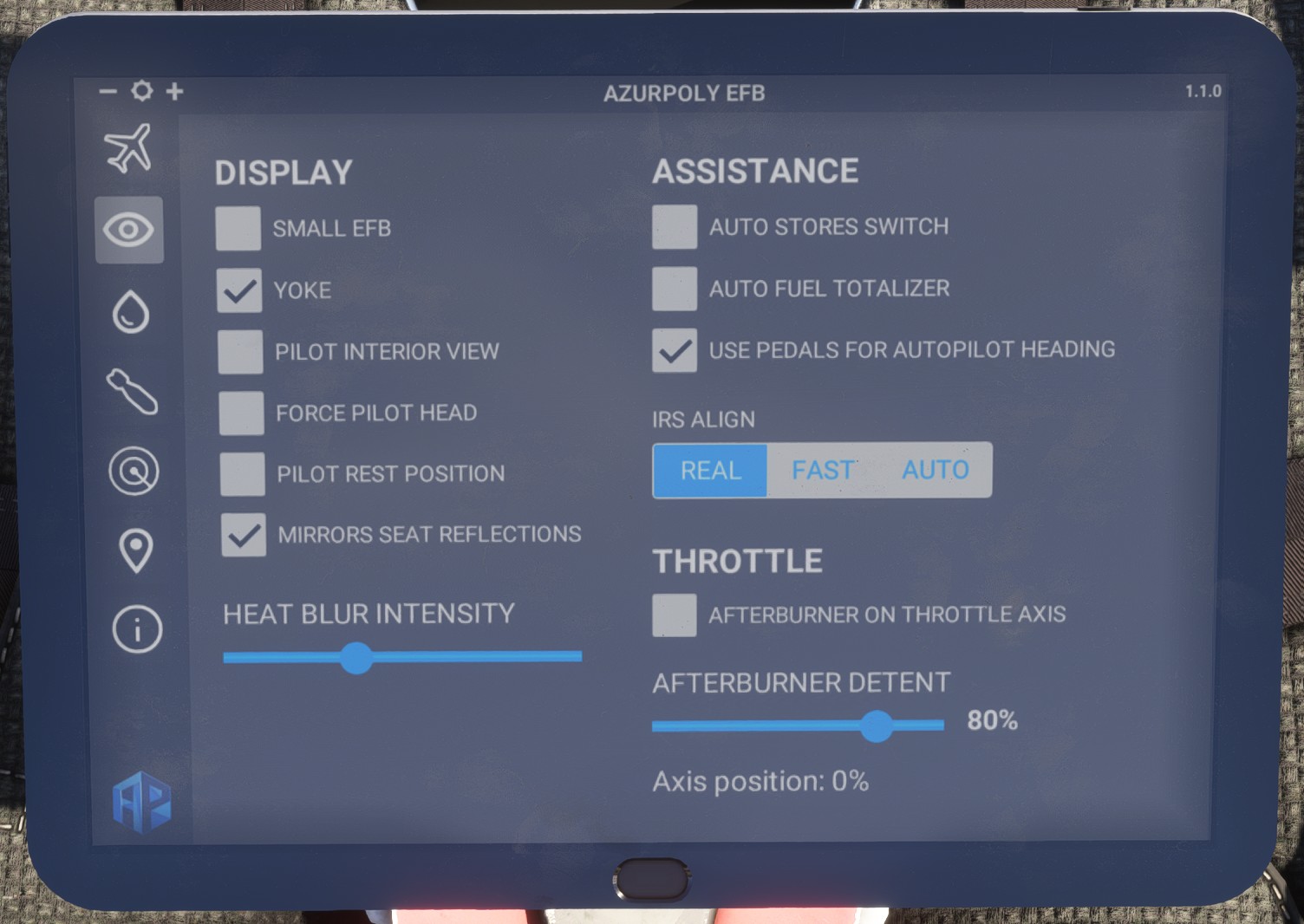
The following display options are available:
-
SMALL EFB: display the tablet at a smaller size. -
YOKE: show or hide the control stick. The stick can also be hidden by clicking its base. -
PILOT INTERIOR VIEW: display the pilot body when using an interior camera. -
FORCE PILOT HEAD: force the pilot's head to remain visible with any interior camera. -
PILOT REST POSITION: place the pilot in a resting position with his left arm on the side of the cockpit. This option is only available when the canopy is open. -
MIRROR SEAT REFLECTIONS: display the seat reflections in the mirrors. Enabling this option forces the mirrors into a fixed position as MSFS does not currently support realistic dynamic reflections.
A slider is also available to adjust the intensity of the engine heat-blur effect.
Assistance
Several assistance options are available depending on the level of realism you prefer:
-
AUTO STORES SWITCH: automatically set the stores configuration switch according to the current aircraft payload. -
AUTO FUEL TOTALIZER: automatically set the fuel totalizer during the whole flight. -
USE PEDALS FOR AUTOPILOT HEADING: use rudder pedal inputs with differential braking to adjust the autopilot heading target, as on the real aircraft. -
IRS ALIGN: select the INS alignment setting:REAL: realistic alignment time (default).FAST: fast alignment (one minute).AUTO: automatic alignment, both INUs are kept aligned.
Throttle
This section allows you to choose how the afterburner is controlled.
The afterburner can either be included directly within the throttle axis range or toggled using a dedicated button. More information about the required bindings is available in the controls assignments section.
When the afterburner is controlled through the throttle axis, you can select the physical axis position at which the afterburner range begins.
Fuel
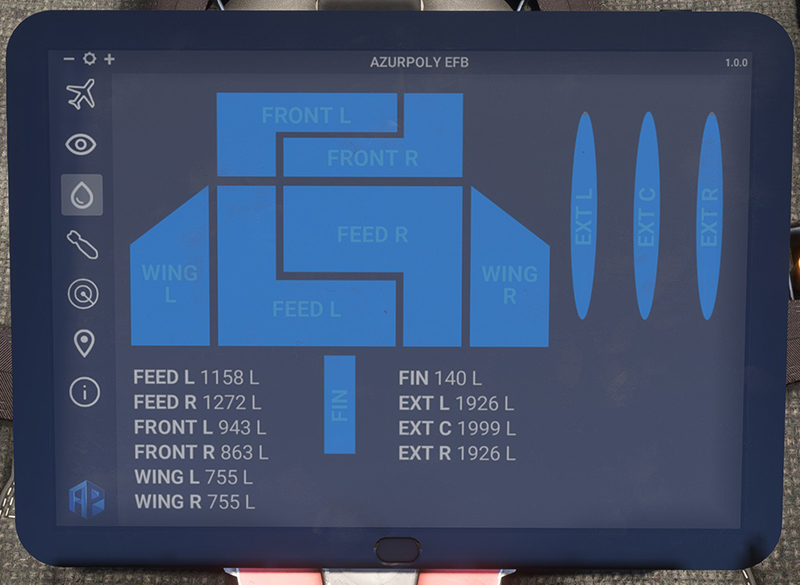
This page displays all internal and external fuel tanks installed on the aircraft.
Click any tank to adjust its fuel quantity individually.
Payload
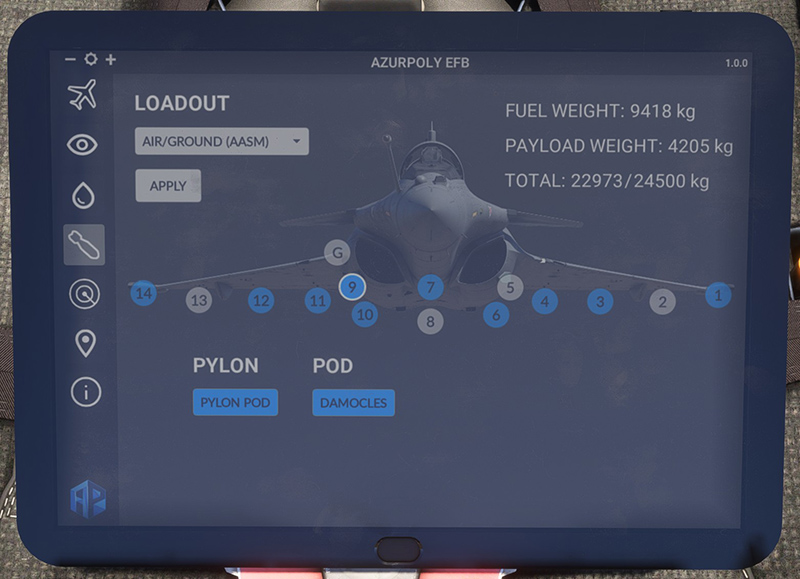
This page is used to configure the aircraft payload.
You can browse the available loadout presets and apply one directly to the aircraft.
Three custom preset slots are also available. These presets can be saved and reused during future flights.
Individual stations can be configured by clicking them and selecting the desired store.
The station labelled G represents the cannon and can be used to reload its ammunition.
The weight summary in the upper-right corner of the page displays:
- Fuel weight.
- Payload weight.
- Total aircraft weight compared to maximum take-off weight.
Traffic spawner
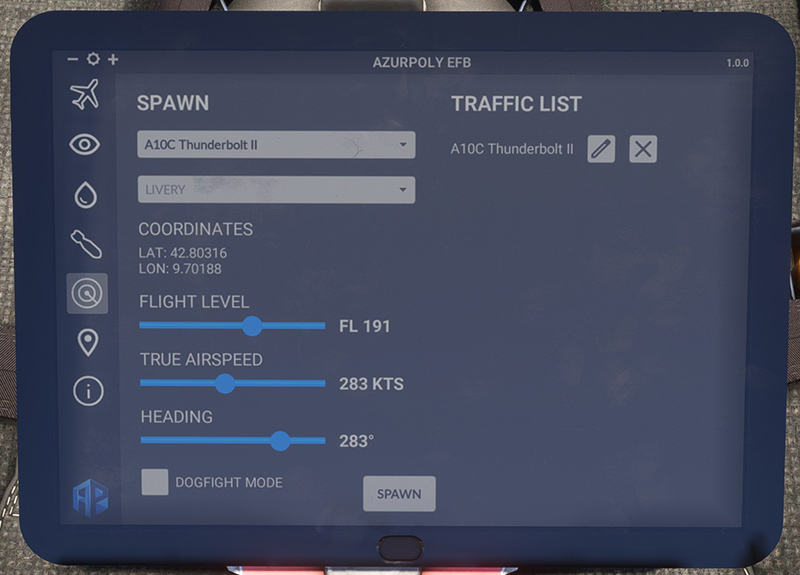
This page was developed specifically for the aircraft. It allows you to generate AI air traffic on demand and create custom mission scenarios.
On the left side of the page, you can select the aircraft model to spawn and its livery. The available aircraft depend on the content installed in your simulator library.
For aircraft originally developed for MSFS 2020, livery selection may not be available through a separate dropdown menu.
Instead, each aircraft and livery combination appears as a separate entry in the TYPE list. This is caused by differences in the simulator architecture.
The traffic spawn position is determined by the location of the cursor on the center display.
You can then configure the traffic:
- Altitude.
- True airspeed.
- Heading.
- Behaviour mode.
When DOGFIGHT MODE is disabled, the aircraft flies in a straight line using the selected parameters.
When DOGFIGHT MODE is enabled, the aircraft performs pitch and roll manoeuvres to simulate an evasive target or a pursuit scenario.
Press SPAWN to generate a new AI aircraft using the selected parameters.
For performance reasons, a maximum of nine AI aircraft can be generated simultaneously.
The right side of the page lists all aircraft currently generated by the traffic spawner.
Each aircraft can be removed or edited. Its altitude, speed, heading and dogfight mode are updated using the settings on the left side of the page.
Map
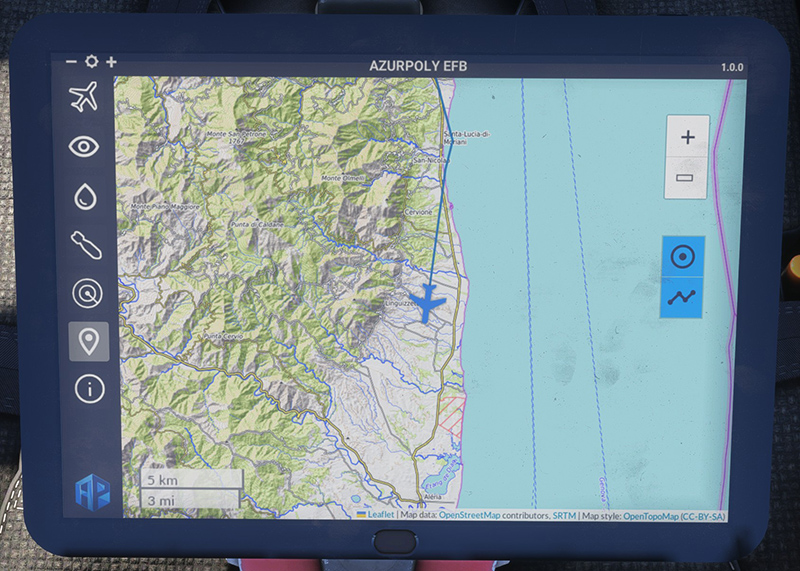
This page displays a map centred on the current aircraft position.
The controls on the right side of the page provide the following functions:
- Zoom in and out.
- Enable or disable automatic centring on the aircraft.
- Show or hide the recorded flight path.
Information
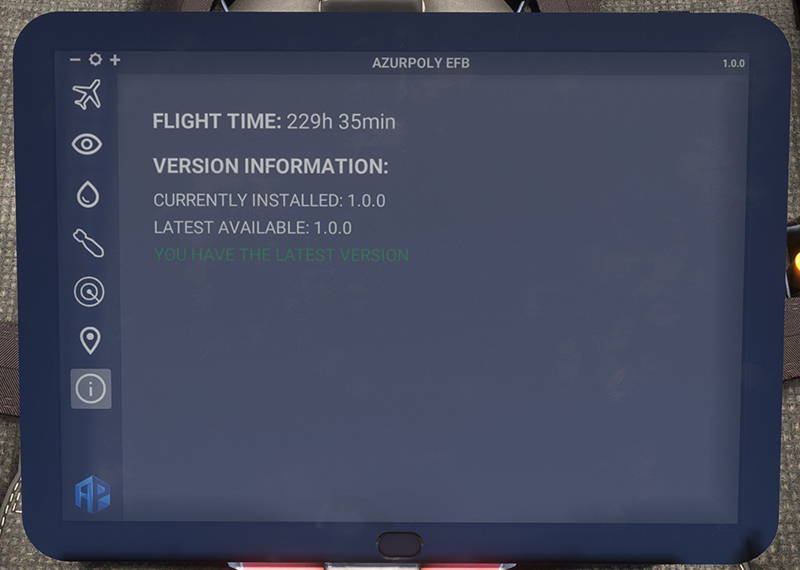
This page displays information about the currently installed version of the aircraft.
A notification is shown when a newer version is available.
The page also displays the total amount of time you have spent flying the Rafale.