Navigation
Database and goals
One of the key concepts in the Rafale avionics is the goal. A goal represents a geographical point associated with a number between 1 and 999 and a name.
The avionics system includes a database containing all available goals.
At all times, the aircraft must have a primary goal and may also have an optional secondary goal. Both are displayed on the LD HSI page.
By default, the aircraft automatically creates a primary goal corresponding to the nearest airport.

All existing goals can be viewed and managed from the LD DB page.
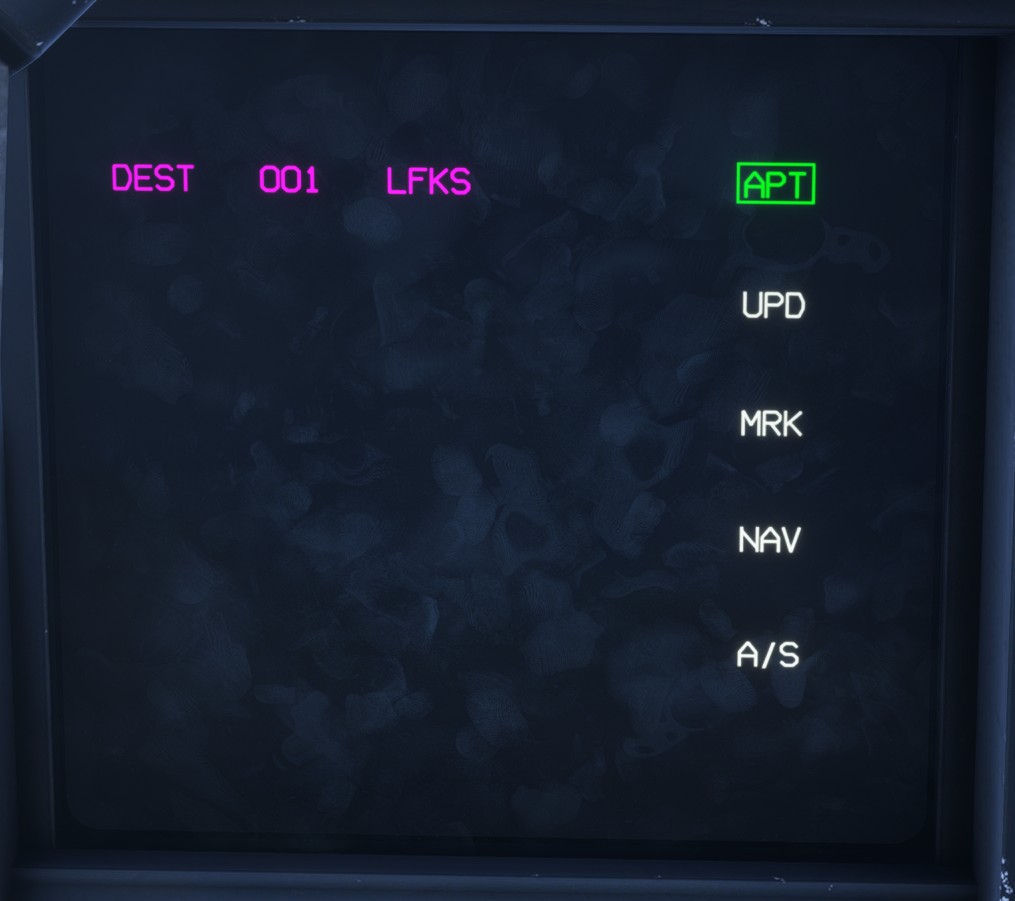
Each goal has a type among the following:
APT: airport goal.UPD: update goal, used for in-flight INS realignment.MRK: marker goal, described in the section below.NAV: navigation goal, used in the flight plan.A/S: air-to-surface goal, used as a surface target.
The primary goal is closely linked to the flight plan, as explained in the next section.
MRK and A/S goals can be modified by changing their coordinates or deleting them. APT and NAV goals are managed by the navigation system and cannot be modified once created.
On the real aircraft, the database is populated with all mission-related points during mission preparation. The logic is slightly different in the simulator, where the database is populated and modified during the flight.
Marker goals
A marker goal (MRK) is a user-created goal stored in the aircraft database. It can be used to mark any position of interest directly from the HCD, then reused by other navigation and mission functions.
To create a marker goal:
-
Click the desired location on the
HCDto place the cursor. The cursor information box displays the bearing and range from the aircraft to the selected position. -
Press MGP4. A new
MRKgoal is created at the exact position of the cursor and is assigned a database number. -
The new marker appears on the
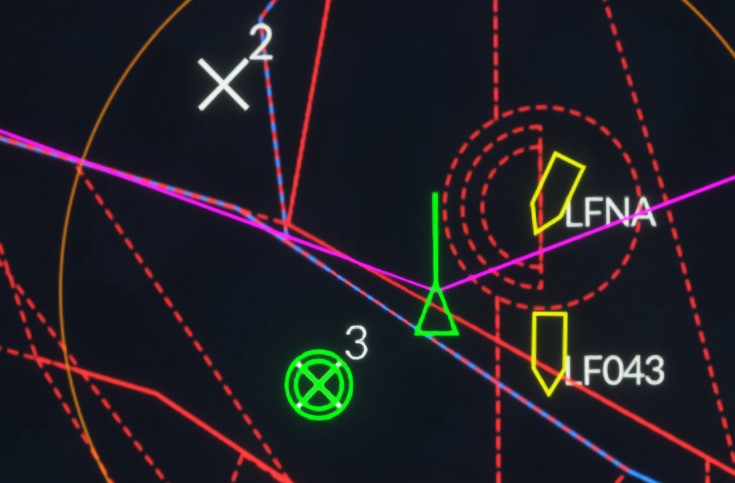
HCDas a cross labelled with its database number. It is also added to theMRKlist on the LD DB page.

Once created, a marker goal can be:
- Selected as the secondary goal on the LD HSI page.
- Used as the active bullseye.
- Inserted into the flight plan.
- Used as a surface target by selecting
TGTon its LD DB details page.
Bullseye
A bullseye is a fixed geographical reference shared by all participants in a mission. It provides a common origin from which positions can be reported without referring to the location of a particular aircraft.
A bullseye position is conventionally expressed as a bearing and a distance. For example, BULL 045/30 describes a position located 30 nm from the bullseye on a bearing of 45 degrees. This allows aircraft, targets or other points of interest to be located quickly using the same reference.
In the avionics, the bullseye is assigned to an existing goal in the aircraft database. Any suitable goal can be used, including a marker goal created specifically for this purpose.
To select the bullseye, use the MFK in BULL position.
Inertial navigation system
The Rafale uses two inertial navigation units (INU) for navigation. Both units must be aligned before each flight.
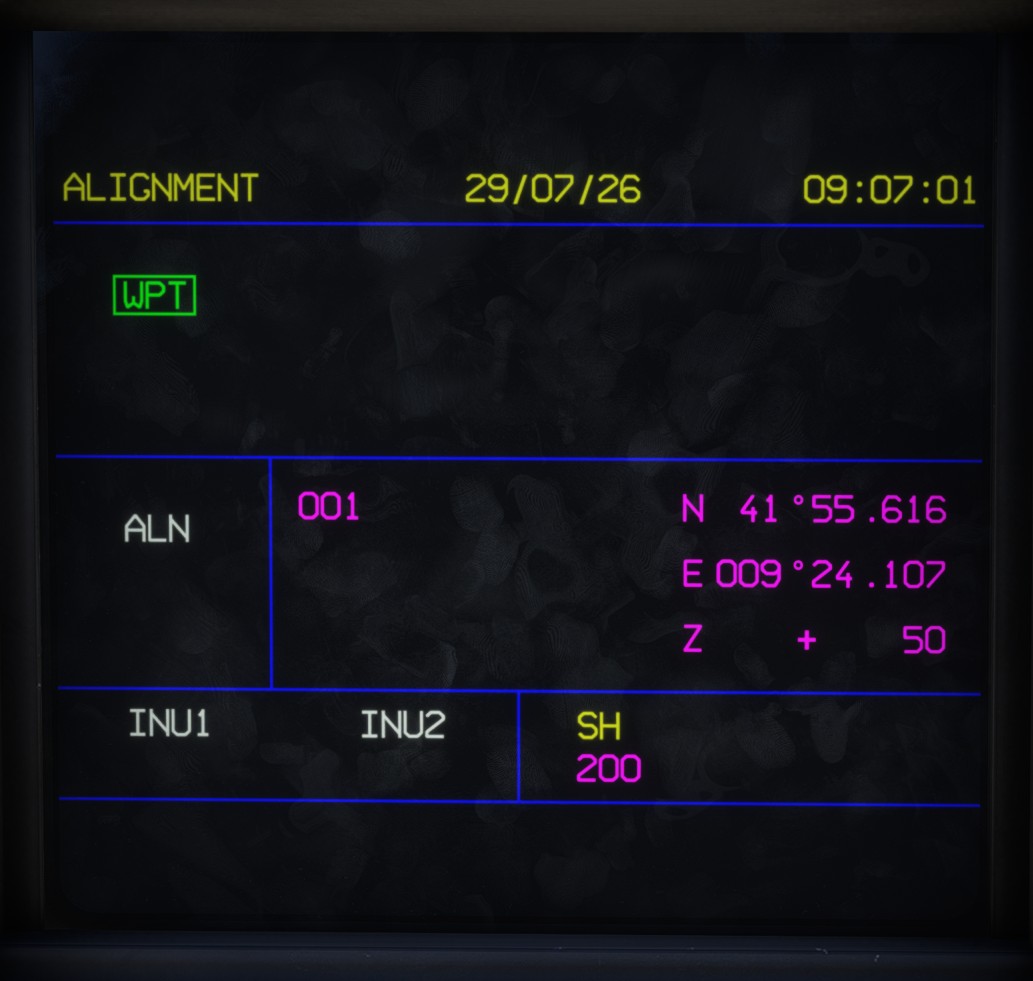
When electrical power is first supplied to the aircraft, the LD NAV page is displayed on the LLD. It shows the number and coordinates of the nearest goal, which the system uses as the reference position for alignment.
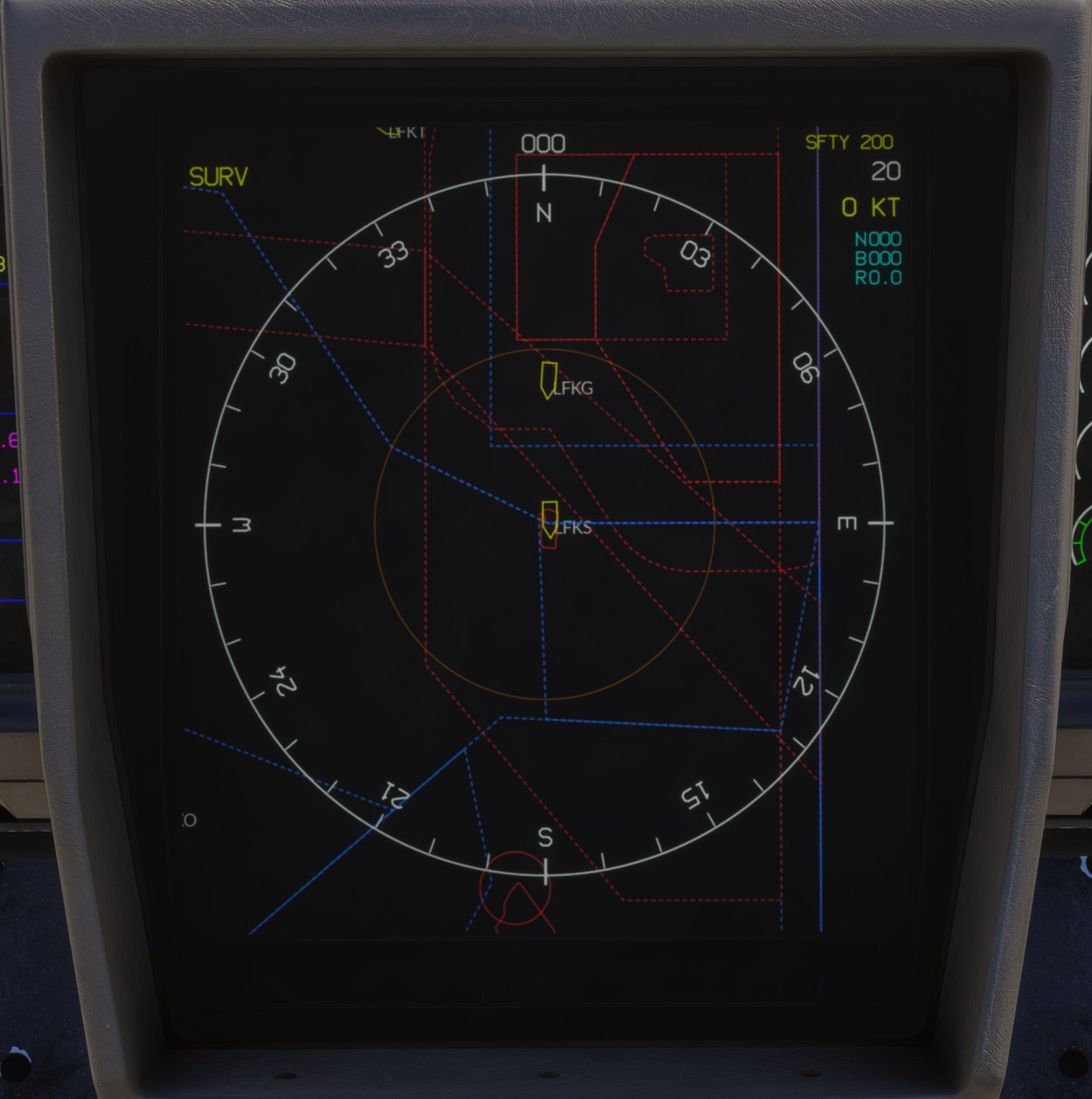
The center display is initially centred on the goal used as the alignment reference.
Select ALN to start the alignment sequence.
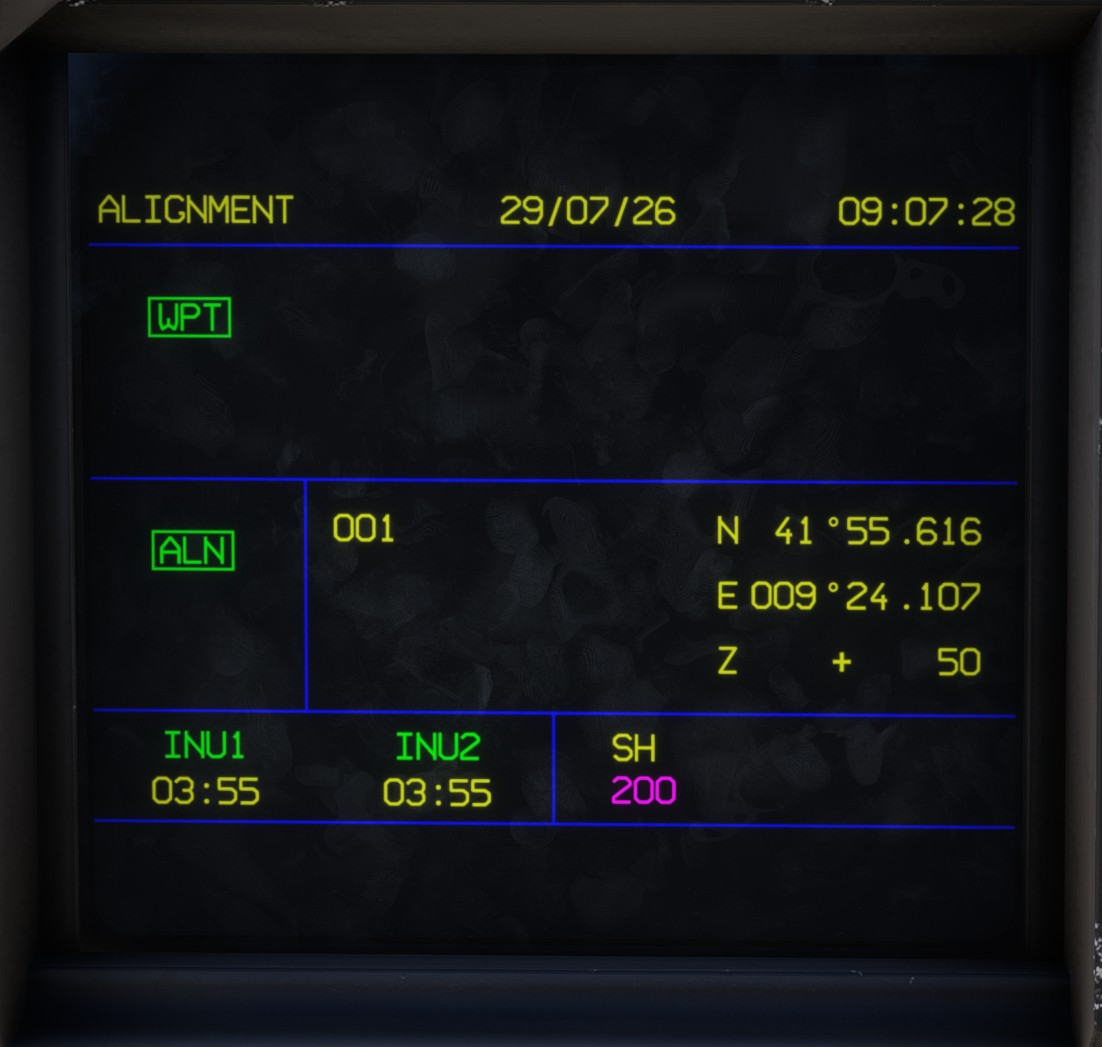
The complete alignment process takes approximately four minutes and requires the aircraft to remain stationary.
The remaining alignment time is displayed on both the LD NAV page and the HUD.
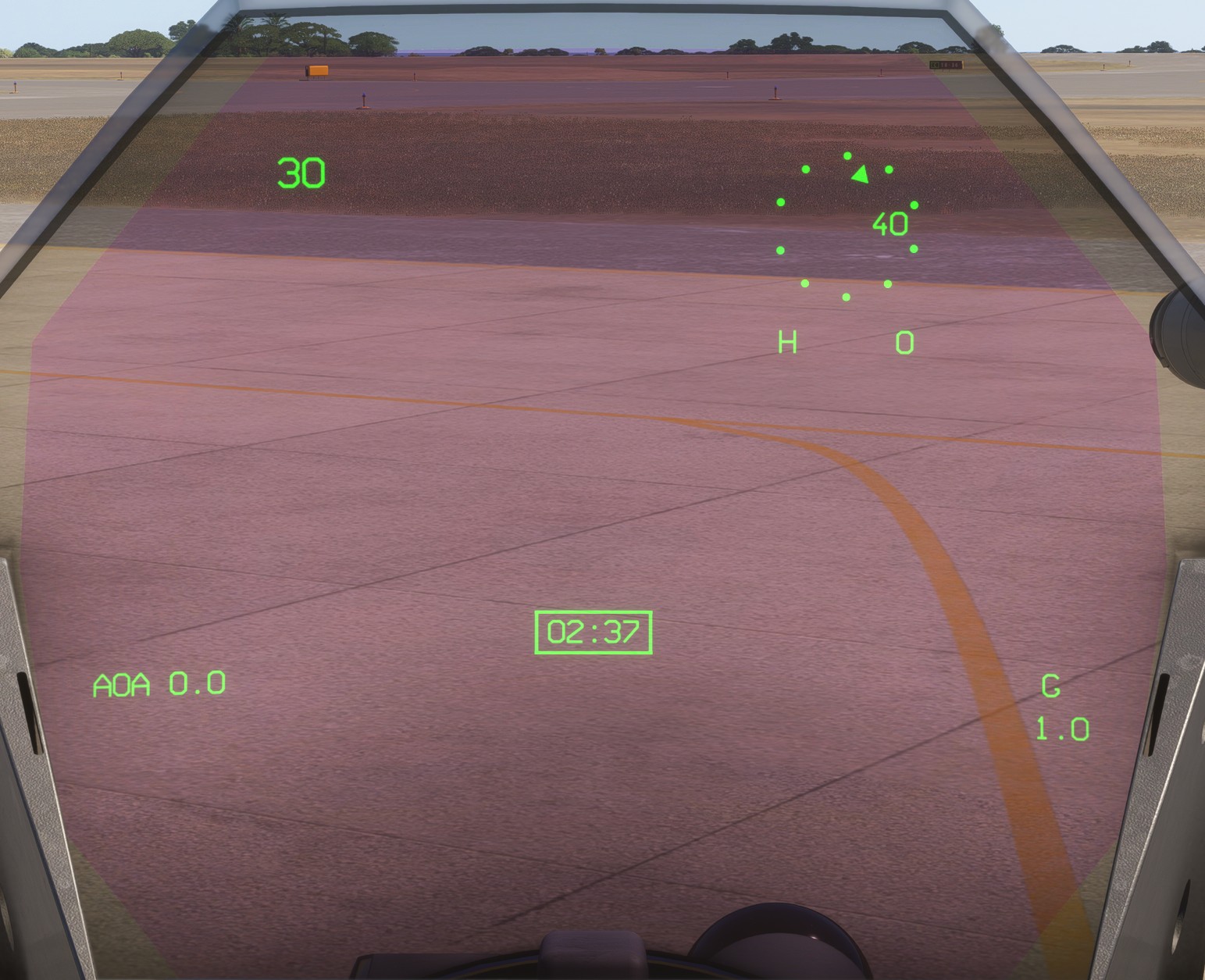
You have to ensure parking brake is set during the whole alignment sequence, otherwise the sequence will be paused.
The alignment sequence can also be paused manually by selecting ALN again.
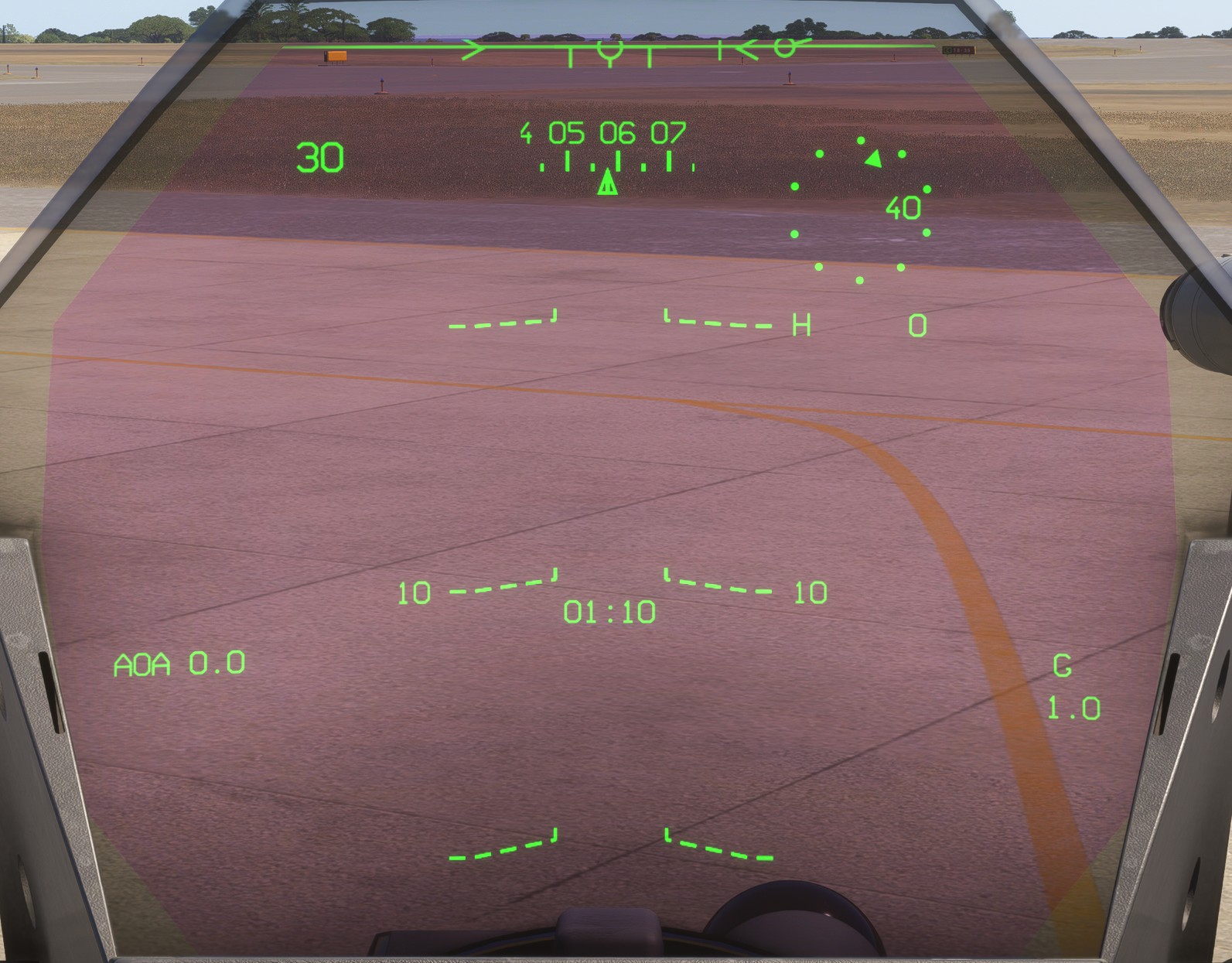
After approximately two minutes, the system has reached a sufficient level of alignment for normal operation, and the sequence may be interrupted if necessary. From this point onwards, all standard HUD indications are displayed and the remaining alignment time flashes.
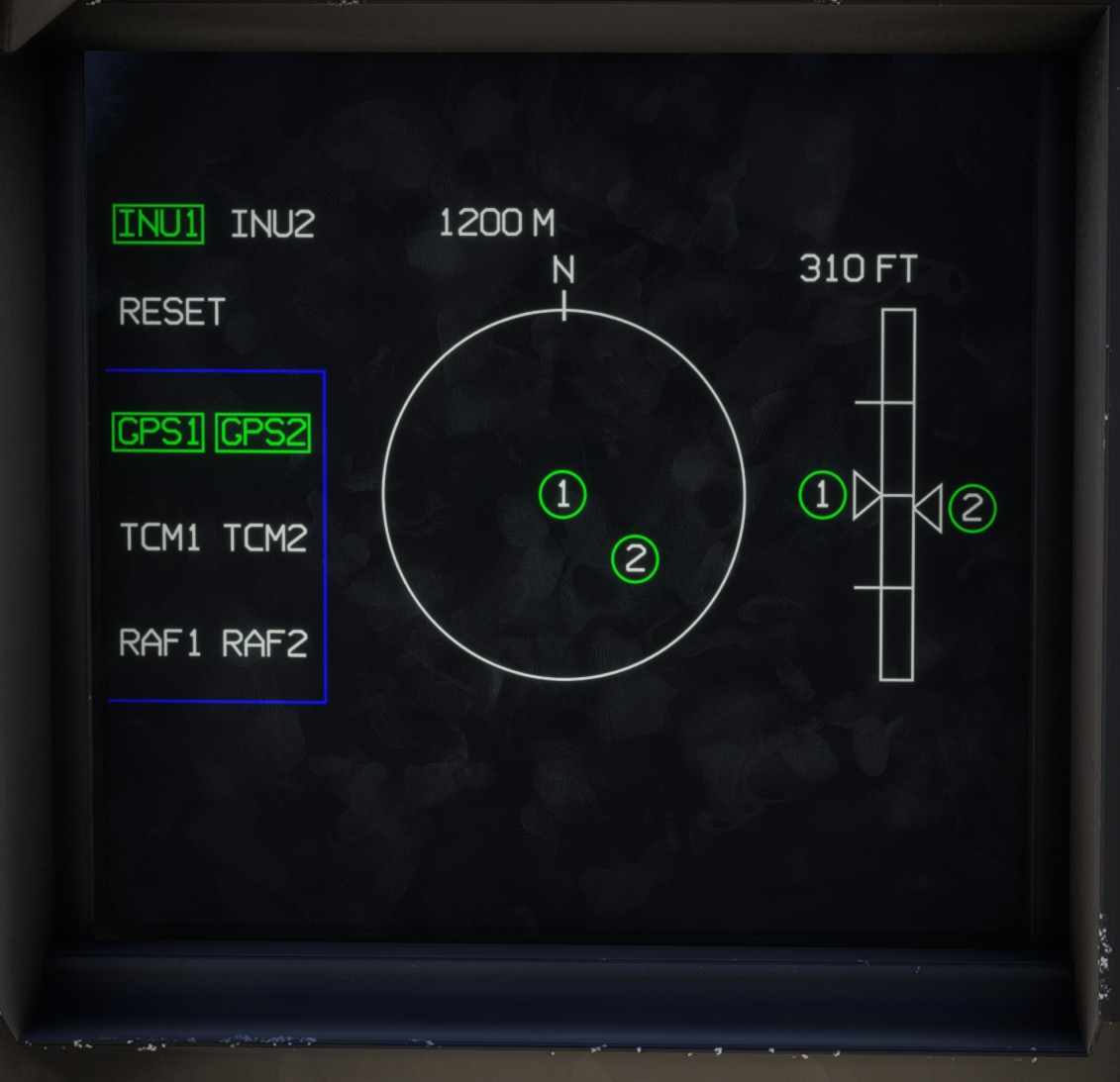
The horizontal and vertical offsets between the two INUs can be monitored at any time on the LD POS page. These offsets progressively decrease during alignment.
The INS alignment sequence can be skipped or shortened using an EFB assistance option.
Flight plan
The aircraft avionics can import and manage a flight plan, which can then be followed by the autopilot.
On the real aircraft, the database and flight plan are loaded into the avionics before the flight. As this workflow cannot be reproduced directly within the simulator, the MSFS EFB is used to create the flight plan and transfer its waypoints to the aircraft systems.
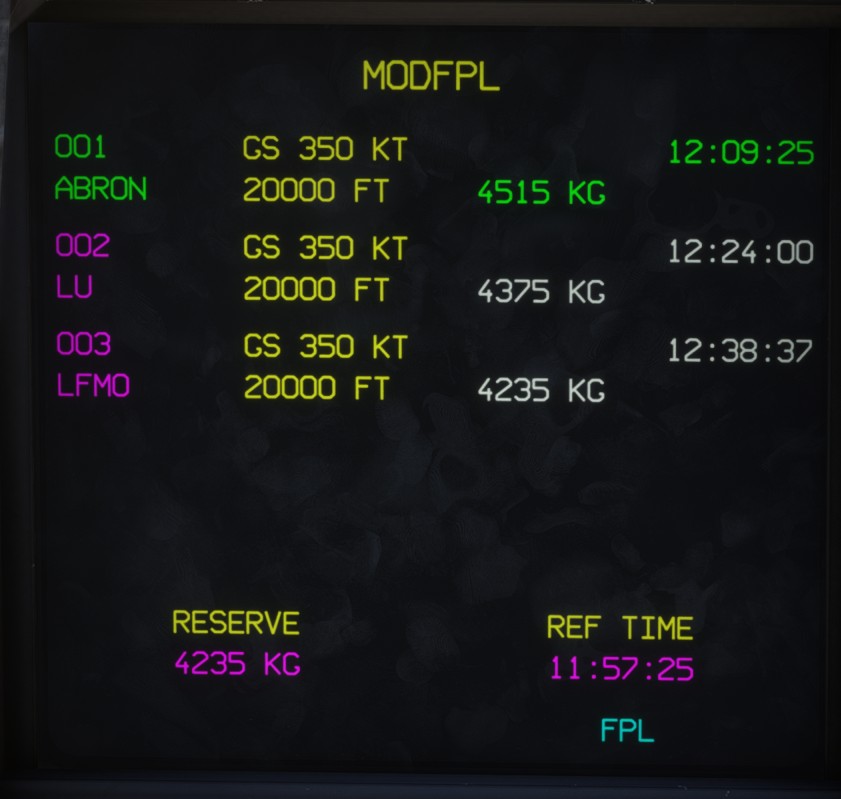
The LD FPL page displays the current flight plan and each of its legs:
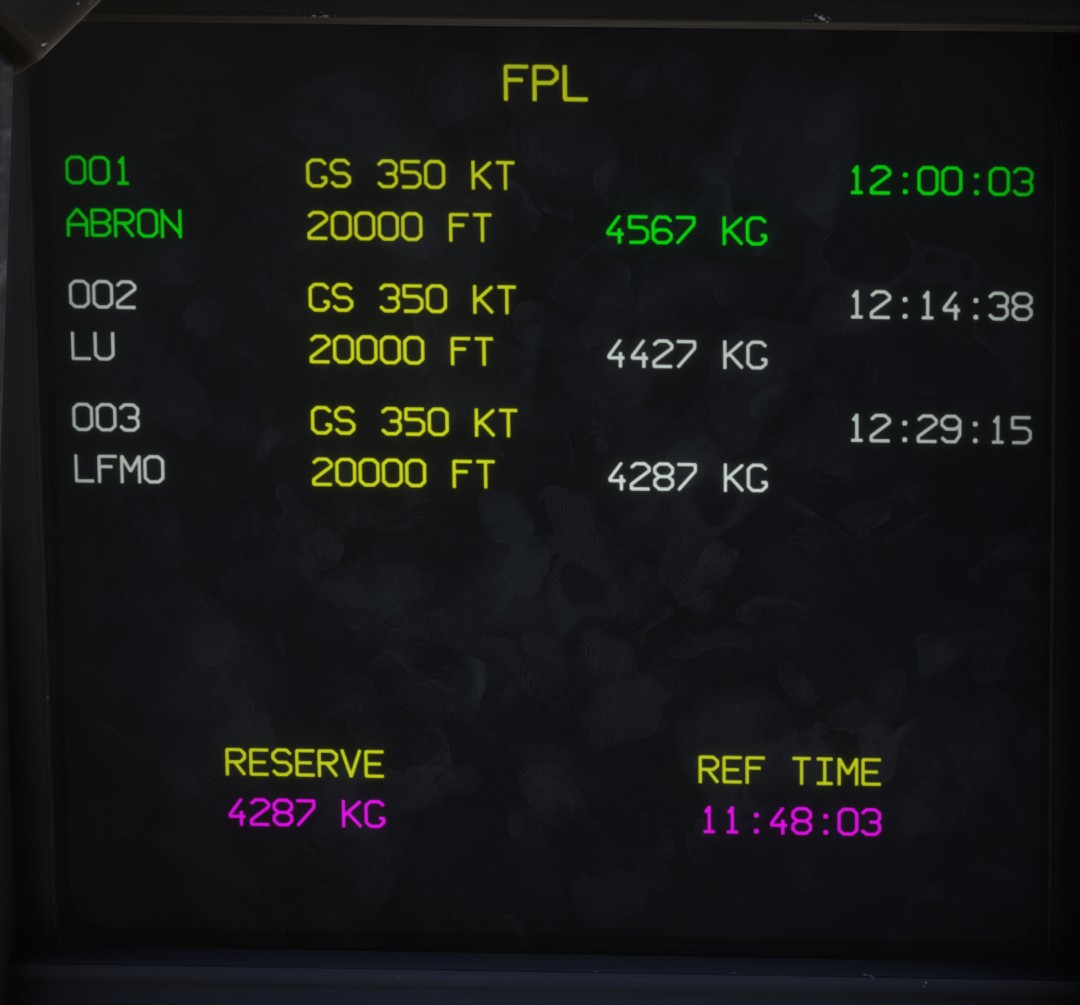
Each leg displays its target speed, as configured on the preparation page, and its associated altitude. Cruise legs use the selected cruise altitude, while specific departure and arrival legs may display an altitude constraint.
The estimated time and fuel remaining are displayed for each leg, with the final fuel reserve at the bottom.
The flight plan is represented by an orange line on the center display. The active waypoint, which is also the primary goal, is identified by a thicker circle.
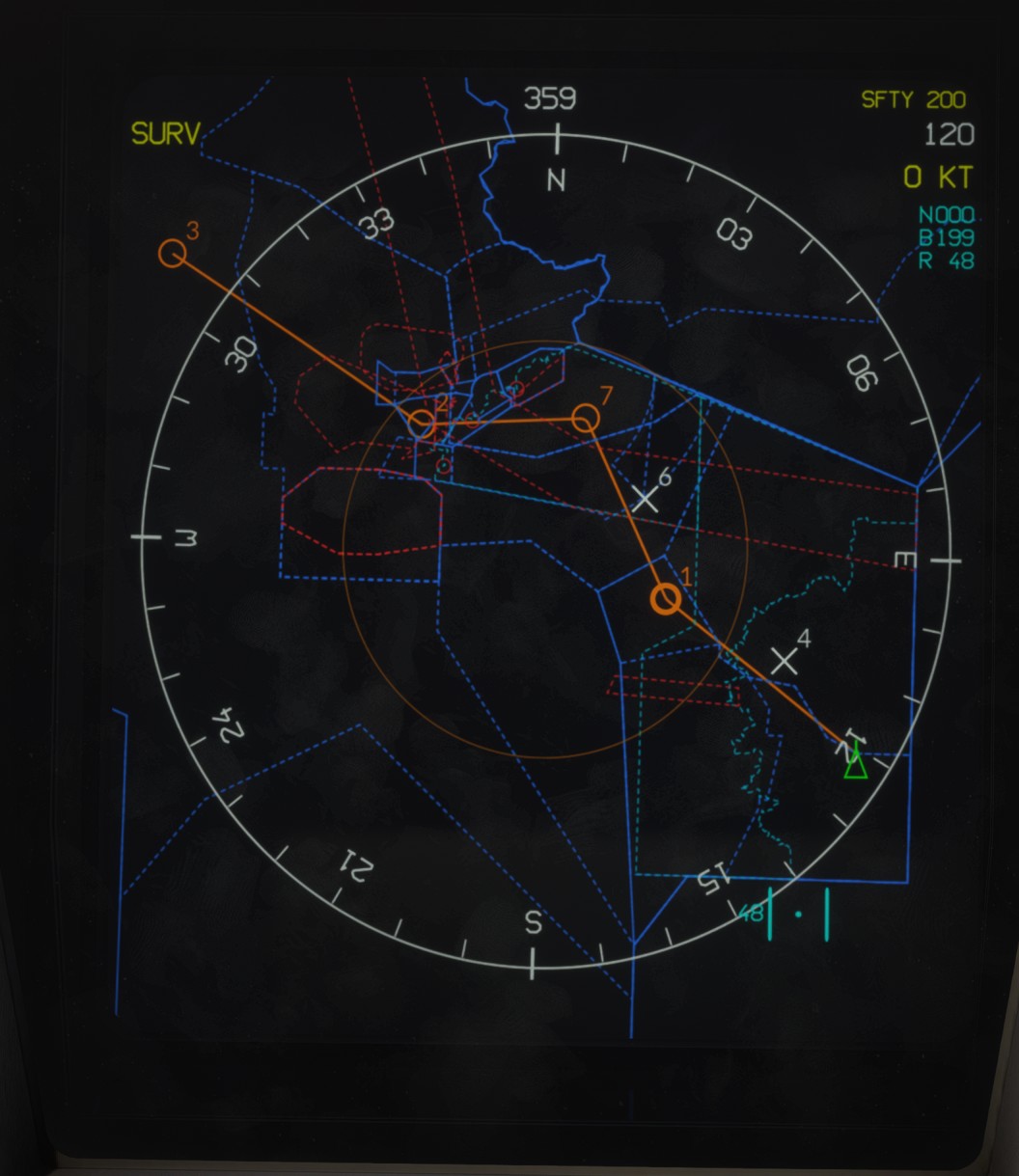
Each waypoint in the flight plan always has a corresponding goal in the aircraft database.
The LD PRP page allows you to configure the cruise altitude and cruise speed before importing the flight plan:
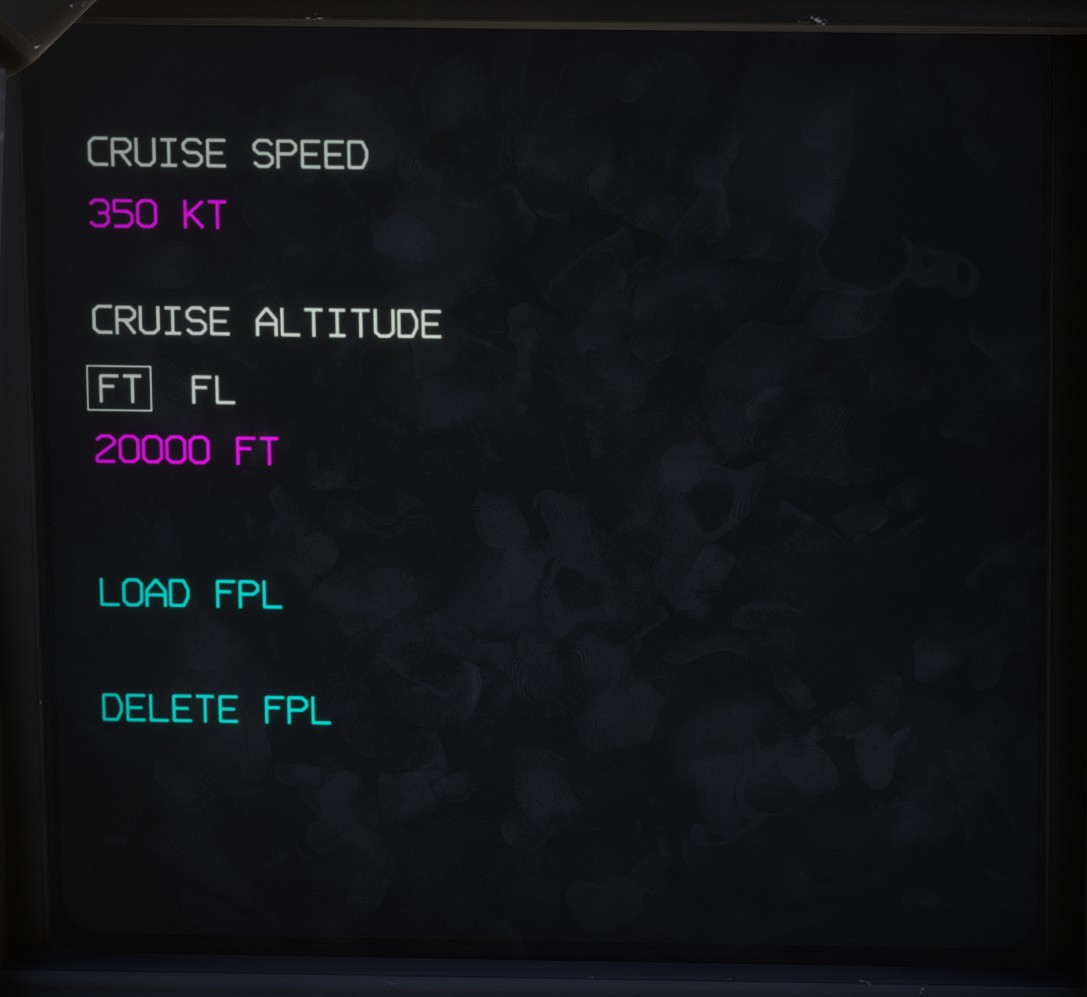
The cruise speed is provided for reference only, as the aircraft does not include a vertical navigation (VNAV) function.
Creation
To create a flight plan, open the MSFS EFB and configure the departure, arrival and any desired intermediate waypoints. SIDs, STARs and approaches are supported by the system.
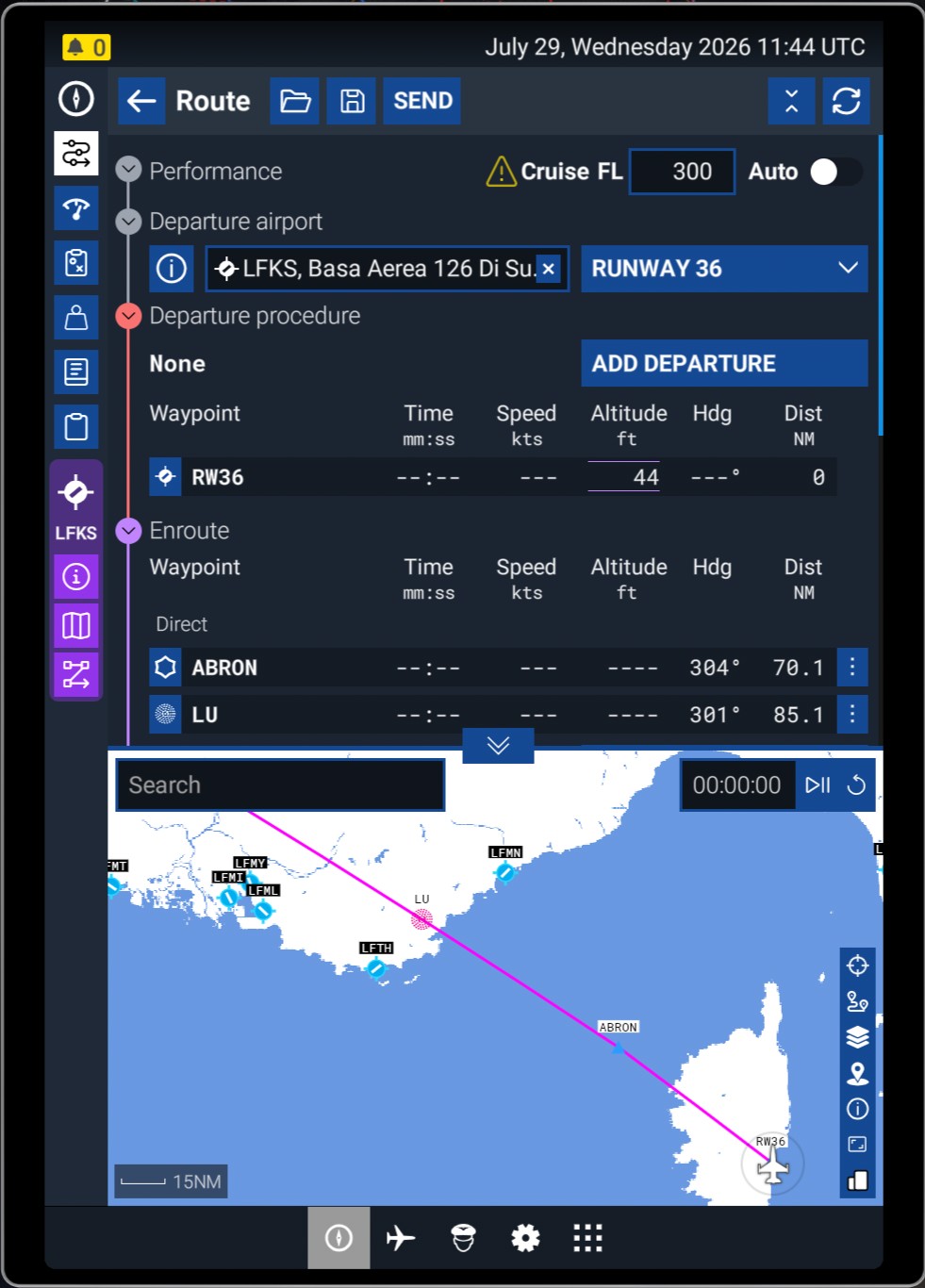
Once the flight plan has been created, select SEND TO AVIONICS to transfer it to the aircraft avionics.
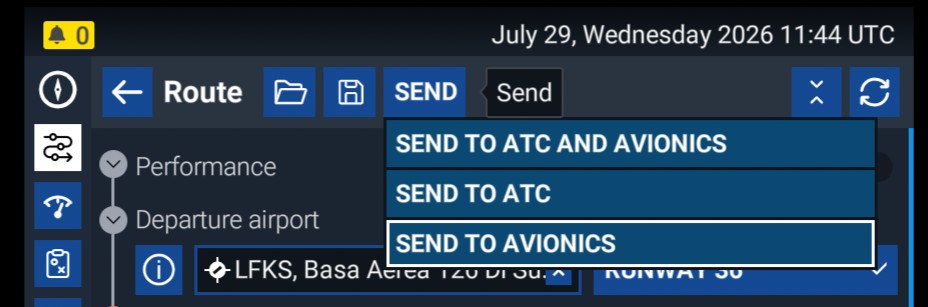
The flight plan is then imported into the aircraft, together with the corresponding database goals, which are numbered automatically.
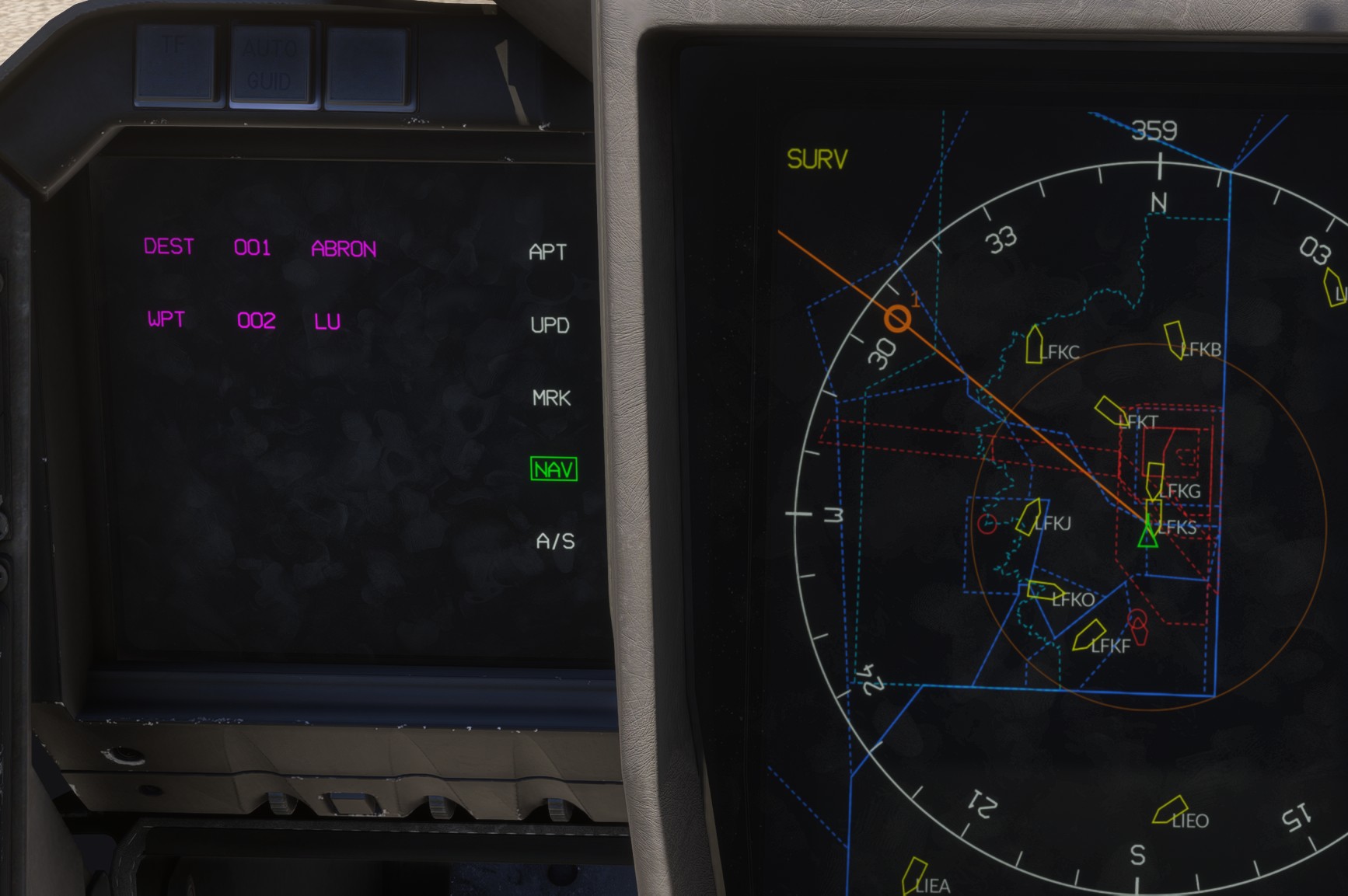
The flight plan is now available for navigation, with its first waypoint automatically selected as the primary goal.
A flight plan created in the MSFS EFB can also be imported directly from the LD PRP page.
Once a flight plan has been imported into the aircraft, it becomes independent of the MSFS EFB. Any subsequent changes made in the EFB will not be reflected in the avionics unless the flight plan is sent again.
Adding an ILS approach to your flight plan automatically configures the aircraft for the approach, with the ILS already set up.
Editing
Once imported, the flight plan can be modified during the flight in several ways.
The LD FM page is used to edit the flight plan, while LD FPL is intended for consultation only. The two pages have a similar layout, but editable items are displayed in magenta on LD FM.
Insert waypoint
A marker goal can be inserted into the flight plan after it has been created from the center display. Its coordinates can be modified beforehand if required.
On the center display, select the marker goal that you want to insert to place the cursor over it.
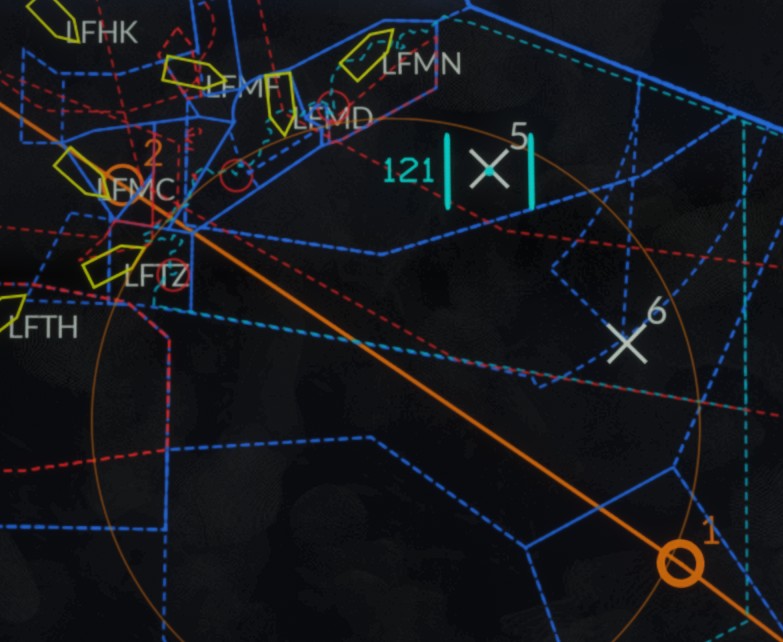
On the LD FM page, open the waypoint immediately before or after the desired insertion position and select INSERT. You can then choose whether to insert the marker before or after that waypoint.
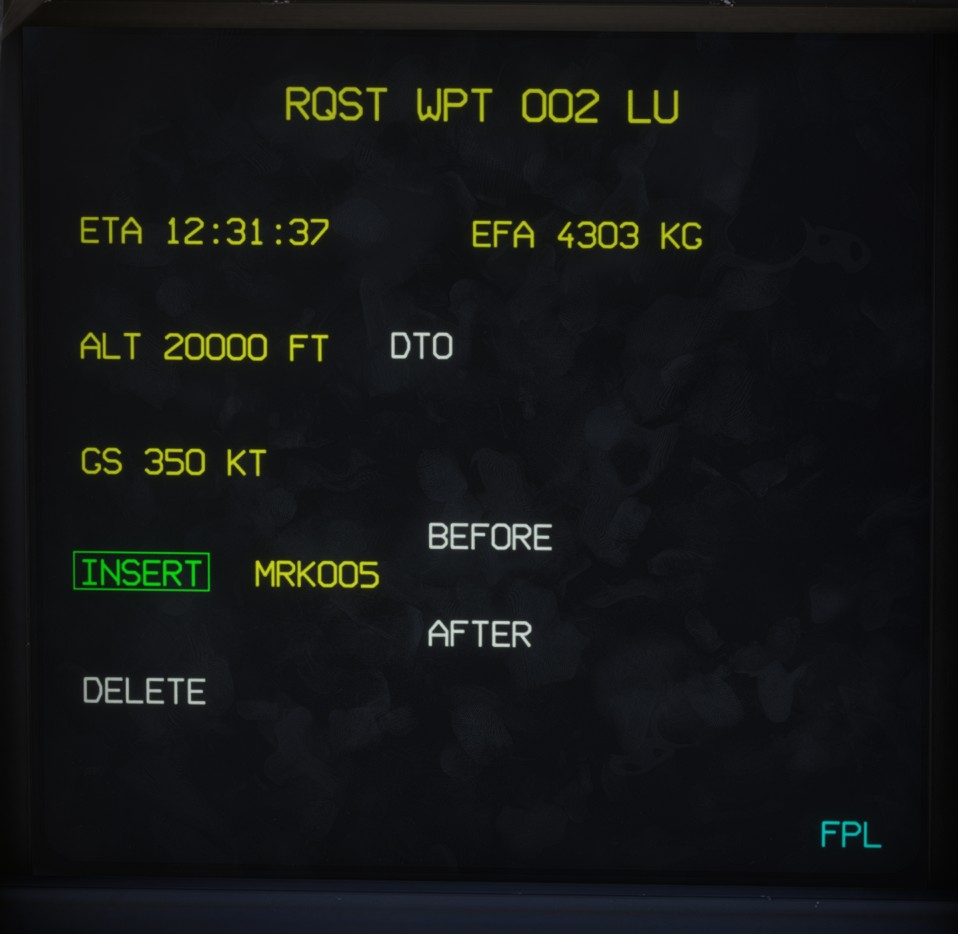
The flight plan is immediately updated with the new waypoint.
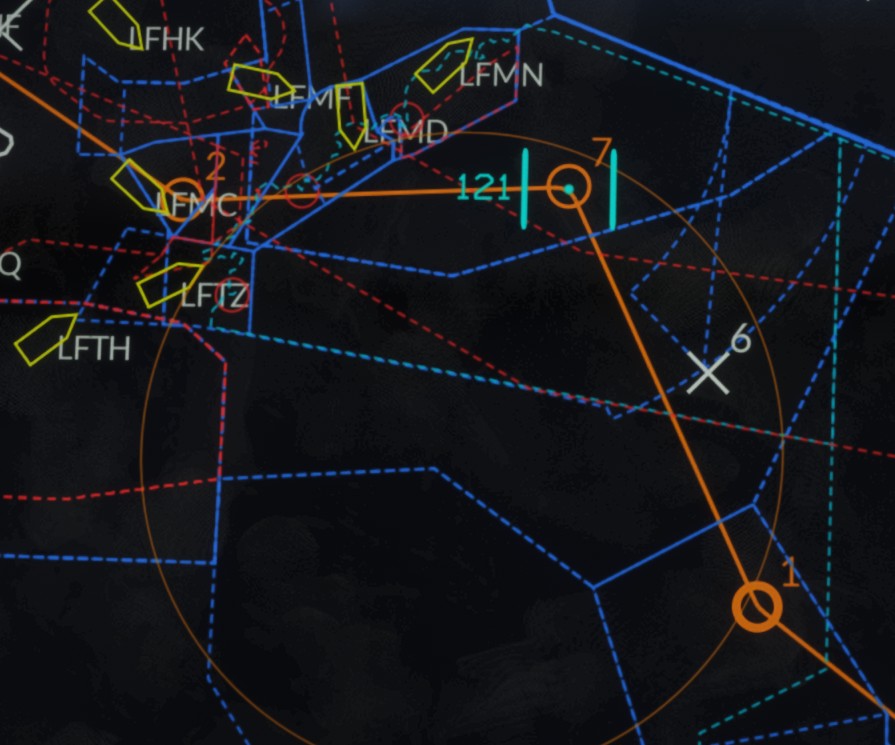
The system does not support inserting other types of goals, such as navdata points, into an existing flight plan. To use these points, they must already be included in the flight plan imported from the MSFS EFB.
Remove waypoint
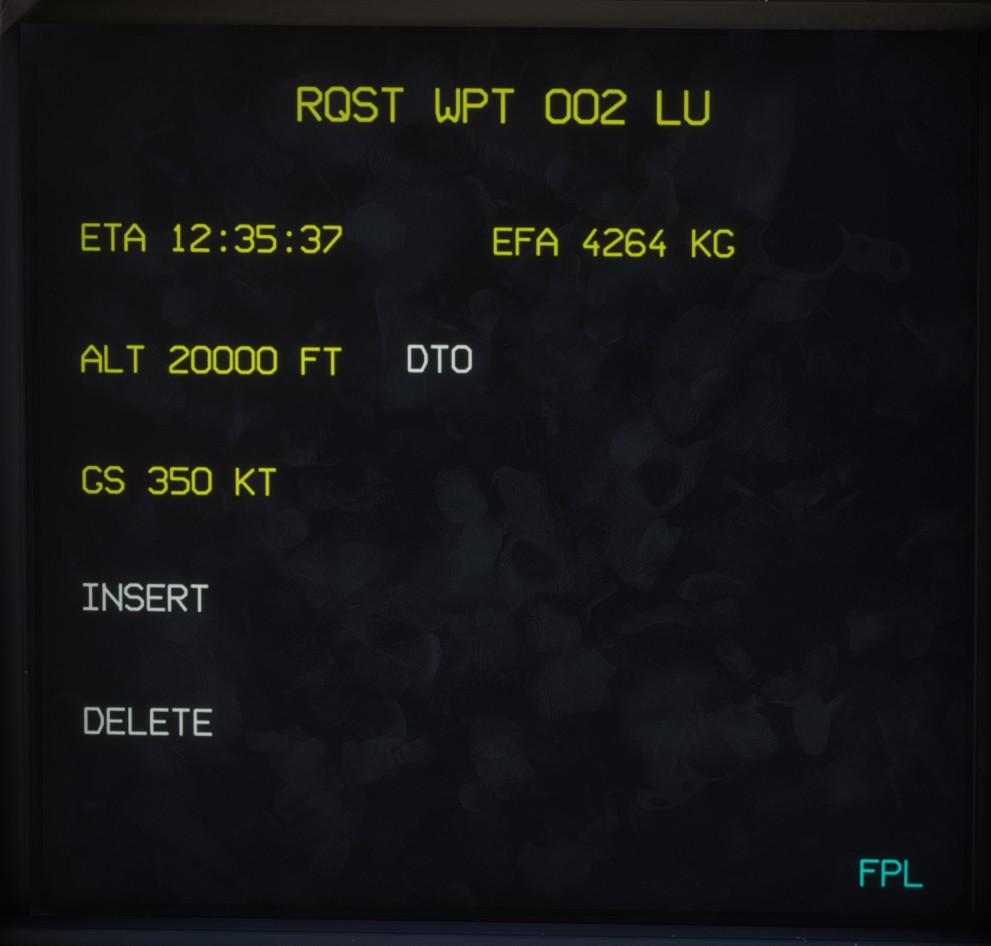
On the LD FM page, open the waypoint that you want to remove and select DELETE.
Delete plan
The complete flight plan can be deleted from the avionics using the LD PRP page.
Direct-to
To bypass one or more flight plan legs, you can create a direct-to leg towards the desired goal. This goal then becomes the new primary goal.
A direct-to can be created in either of the following ways:
- From the LD FM page, open the desired waypoint details and select
DTO. - Set the MFK knob to the
DESTposition and select the desired goal.
The direct-to leg is displayed as a dashed line on the center display.
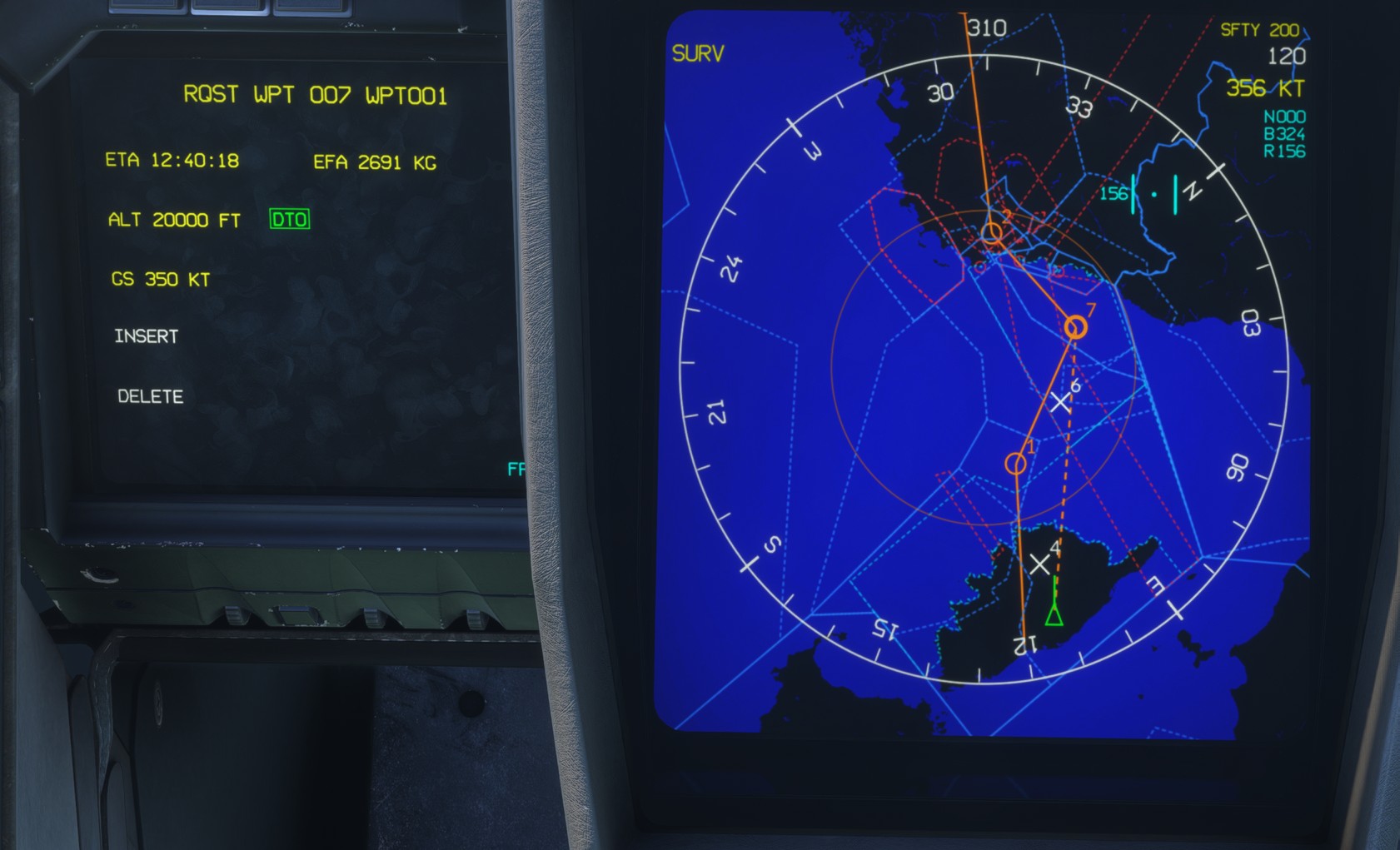
Once a flight plan waypoint has been passed, it cannot be selected as the primary goal again. This limitation follows the MSFS flight plan logic.
SimBrief
A flight plan prepared using a Navigraph® SimBrief account can be imported into the Rafale avionics.
To use this feature, download SimBrief Dispatch for MSFS 2024 from your SimBrief account.
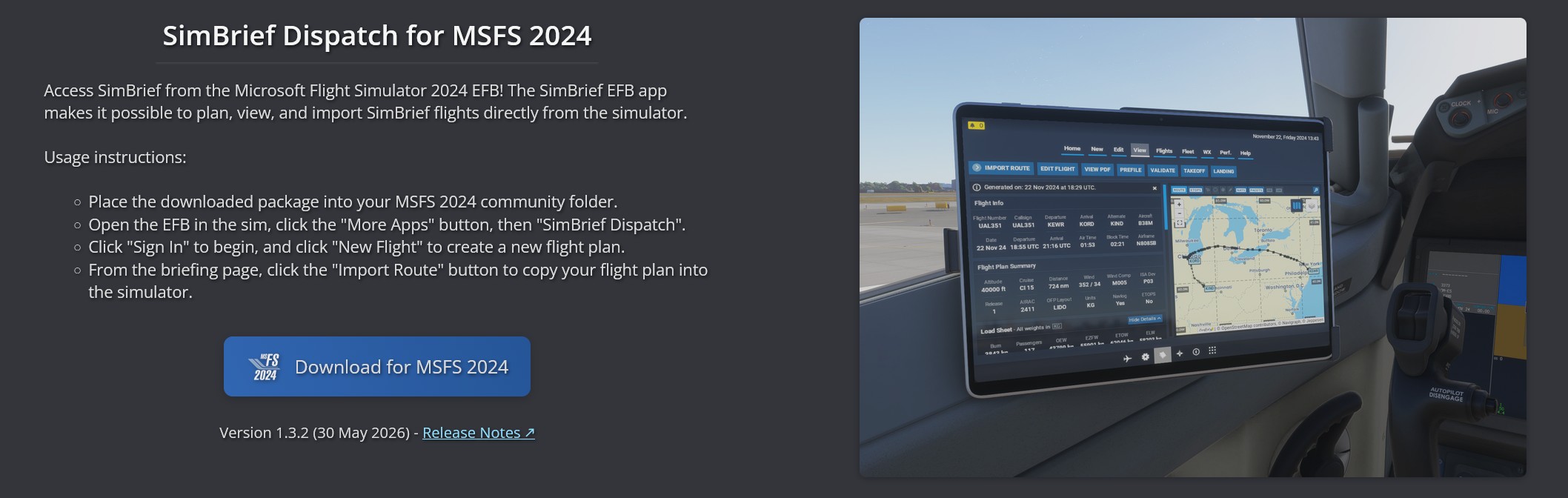
Once installed, the flight plan can be managed directly from the MSFS EFB and imported into the aircraft avionics using the same procedure described above.
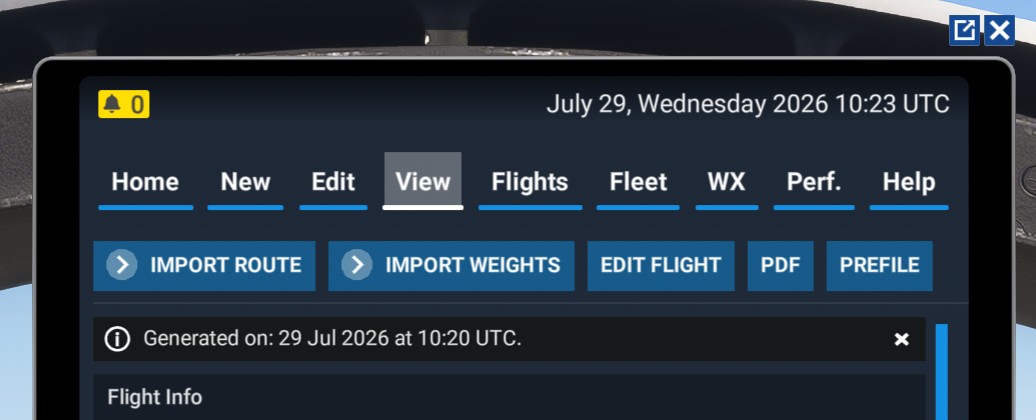
You must select another aircraft type or create a custom aircraft profile, as no dedicated Rafale profile is currently available in SimBrief.