Lateral display
The aircraft has two lateral displays, one on each side of the main panel: the left lateral display (LLD) and the right lateral display (RLD). The two displays operate independently.
Each display shows one page at a time. A page is dedicated to a specific system or function, such as engines, fuel, hydraulics, navigation, communications, weapons, autopilot or failures, and provides the information and controls required to monitor and operate it.
When the DC shed bus is isolated and only the left lateral display remains powered, the page previously shown on the RLD is automatically transferred to the LLD. Under normal conditions, some pages can only be displayed on the right lateral display, including the engine and fuel pages.
Color logic
All lateral display pages use the same colors and visual conventions:
- A selected function or item is surrounded by an outline.
- Amber indicates that a function or item is inactive or unavailable.
- Green indicates that a function or item is active.
- Red indicates a failure.
- Magenta indicates data that can be modified.
Page selection
As explained in the PDS1 section, PDS1 provides access to several pages displayed on the LLD.
In addition, two multidirectional switches provide quick access to the most commonly used pages.
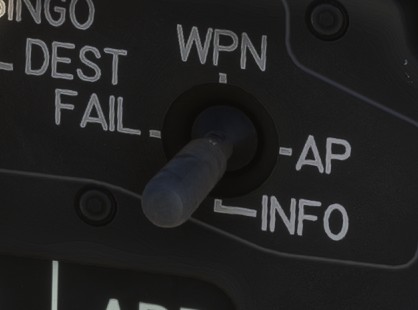
The LLD Page Selection Switch provides access to:
WPN: opens the weapons page.AP: opens the autopilot page.FAIL: opens the failures page.INFO: opens the database details page when the HCD cursor is positioned over a database goal on the map.
The RLD Page Selection Switch provides access to:
HSI: opens the HSI page.ECM: opens the ECM page.FUEL: opens the FUEL page, which also provides access to the engine, hydraulic and other system pages.SA: opens the SITAC page.
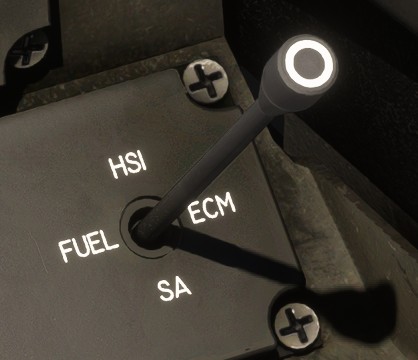
The right selection switch is hidden behind the control stick. You can temporarily hide the stick by clicking its base.
As multidirectional switches can be difficult to operate in MSFS, the interaction is not performed by clicking and moving the switch itself. Instead, click directly on the label corresponding to the page you want to open.
Visualization knobs
Adjustable values shown on the lateral displays can be modified using the LLD Visualization Knob or the RLD Visualization Knob.
This knob is also used to scroll through different items in the page.
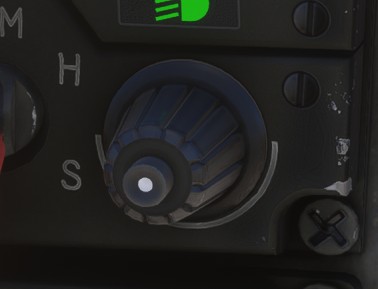
Adjustable values are displayed in magenta, as described in the color logic section.
To modify a value:
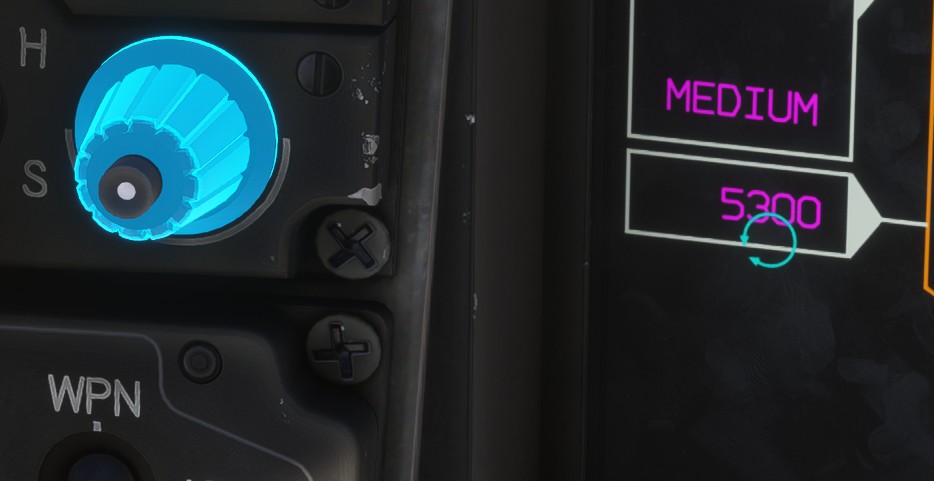
- Click the value. A blue circular arrow appears around it.
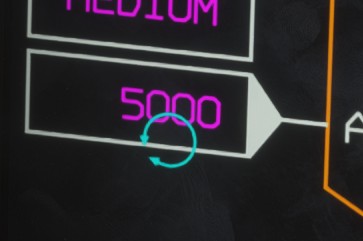
- Turn the visualization knob located beside the display being used. You can click and drag the knob, or use the mouse wheel to adjust the value more quickly.
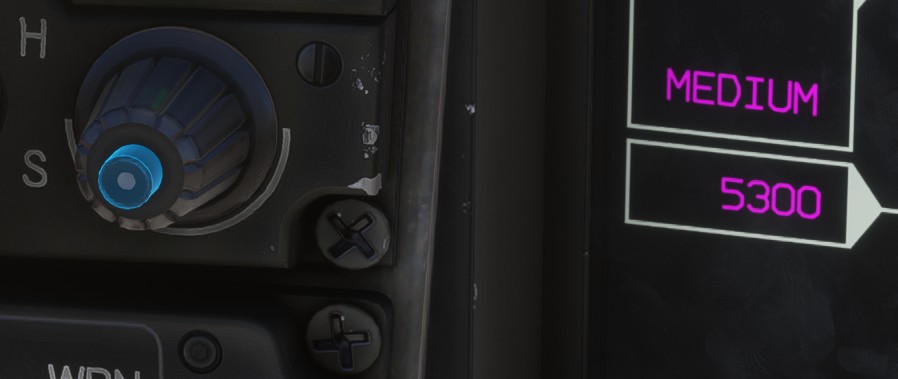
- Press the knob to confirm the new value. The change is not applied until the knob is pressed. To cancel the adjustment, click the selected value again before confirming.
System dialog infobar
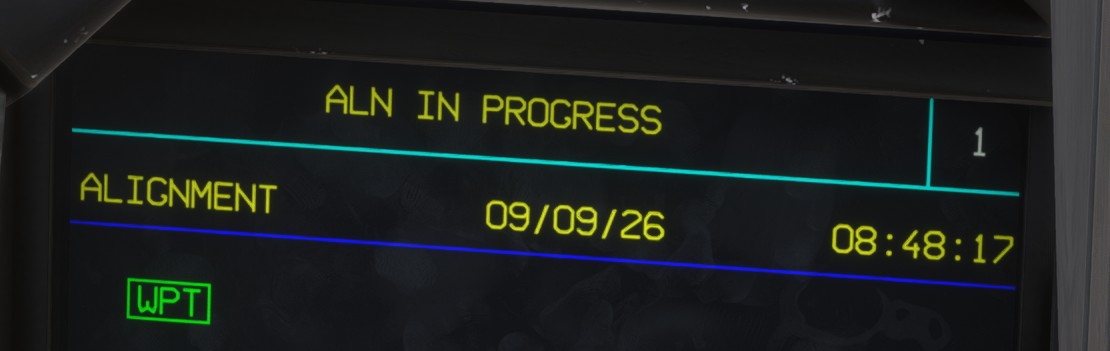
A banner is displayed at the top of both lateral displays when specific events occur.
The infobar shows the event name and its associated number in the system.
Clicking the infobar hides it temporarily.
Pages
Select any page below to view its complete description and operating details.
📄️ APP
Approach
📄️ AP
Autopilot
📄️ COM
Communication
📄️ DAS
Display settings
📄️ DB
Database
📄️ ECM
Electronic counter-measures
📄️ ENG
Engine
📄️ FAIL
Failure
📄️ FM
Flight plan modification
📄️ FPL
Flight plan
📄️ FUEL
Fuel
📄️ HSI
Horizontal situation indicator
📄️ HYD
Hydraulic
📄️ IFF
IFF
📄️ IMA
Imagery
📄️ MISC
Miscellaneous
📄️ NAV
Navigation
📄️ POS
Position
📄️ PRP
Preparation
📄️ SITAC
Tactical situation
📄️ SYS
System
📄️ WDNS
Aircraft systems state
📄️ WPN
Weapons